
接續前一章節:VMware vSphere 6.5 Enabling vCenter Server HA(VCHA) Stage 2
部署作業已經完成:vCenter Server High Availability高可用性保護架構
接下來實際驗證與啟動vCenter Server HA自動容錯移轉保護機制。
實作說明
10.Shut down the VMware vCenter Server Appliance 6.5(Power Off)
強制關閉VMware vCenter Server Appliance 6.5系統電源 ,
模擬作用中Active Node主動節點服務是否會被偵測到異常,
自動容錯移轉服務至Passive Node被動節點的vCenter Server
繼續運作(vCenter Server管理IP不變,系統會自動切換)。
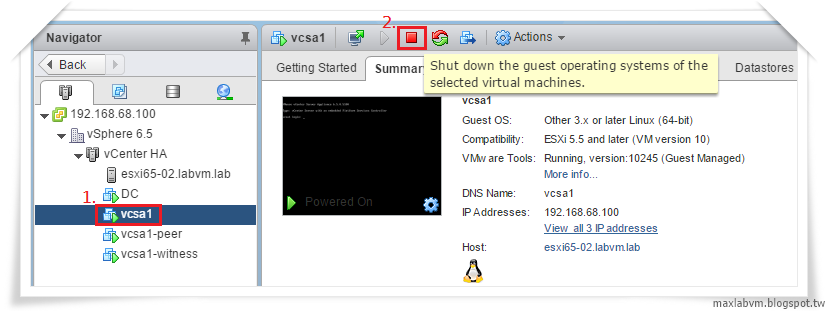
PS.正式上線VM環境,有權限登入系統人員,千萬!千萬!千萬!不要這樣直接關閉VM電源。
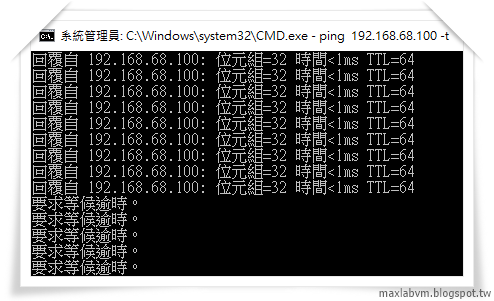
11.Ping response "Request timed out"
因強制直接關閉系統電源,確認vCenter Server系統服務異常中斷,
導致正在運作中的vCenter Server系統無法連線。
12.vCenter Server HA容錯移轉服務正在處理中(請稍後幾分鐘)...
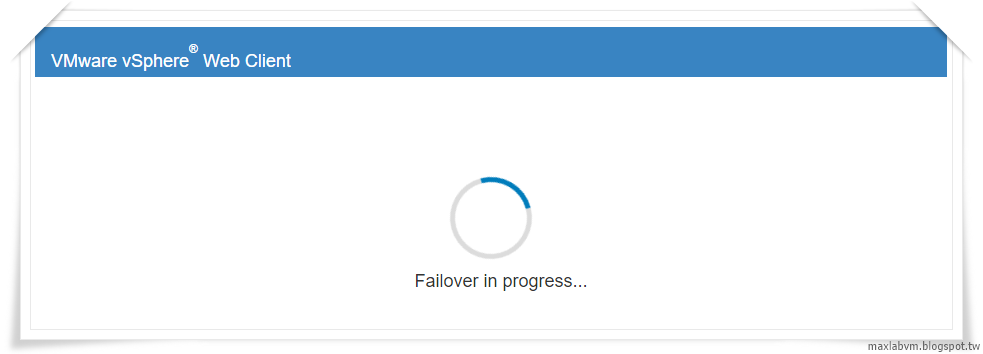
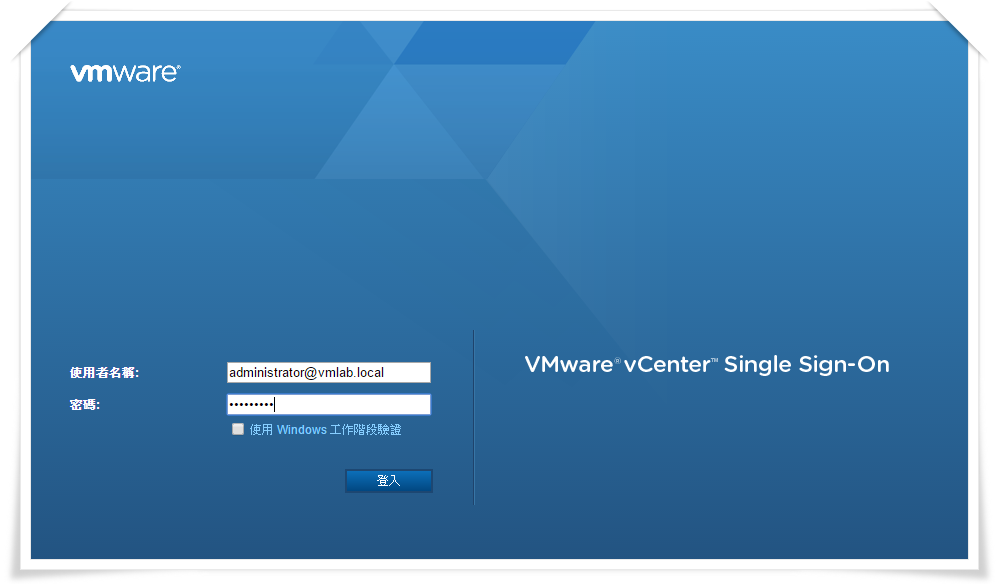
一段時間過後,會發現VMware vCenter Web Client登入畫面恢復正常,
請再次登入系統。
13.A replication failure might be occurring at the moment.
Automatic failover protection is disabled.
請點選:ESXi Host➤Configure設定➤vCenter Server HA
會發現vCenter HA複寫功能失效,自動容錯移轉服務停用,
原Passive被動節點自動切換為Active Node主動節點服務,
vCenter Server繼續運作(vCenter 管理IP不變,系統自動更換)。
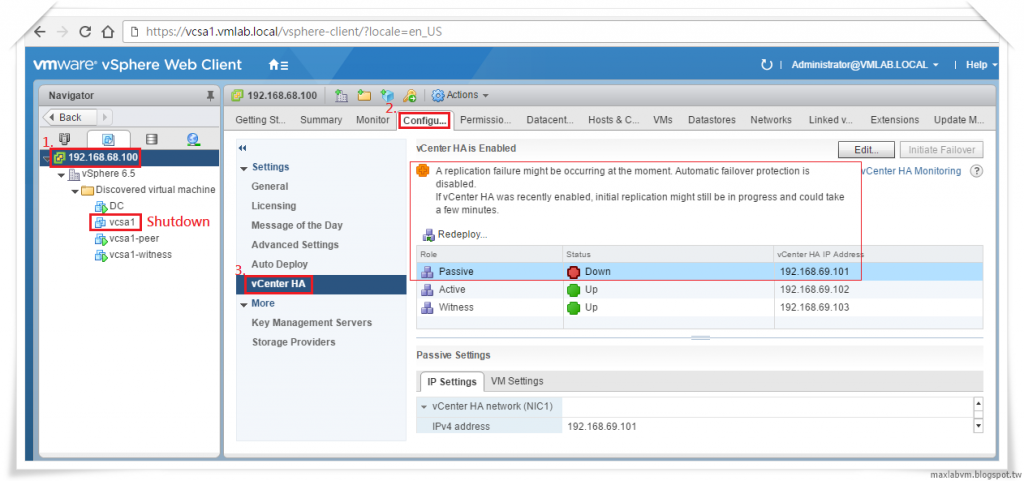
如上圖系統訊息:
vCenter HA 叢集遺失一個節點,請確認被動節點和見證節點是否已上線且可連線。
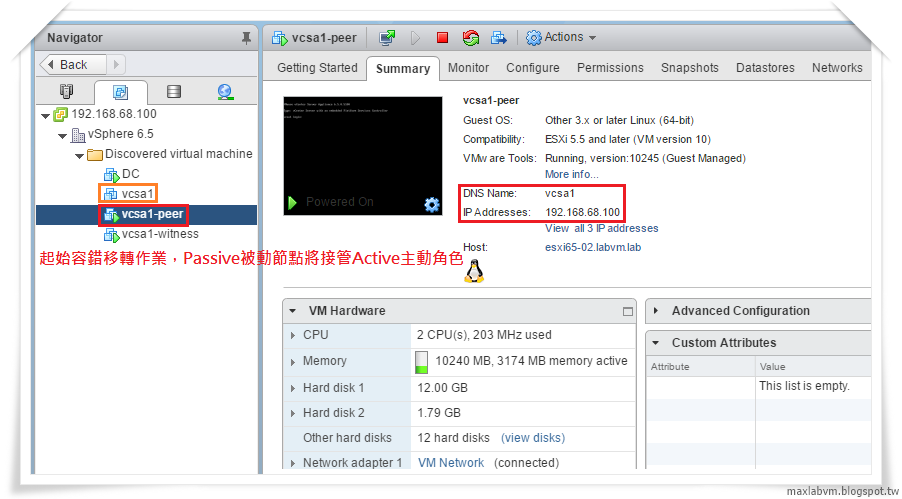
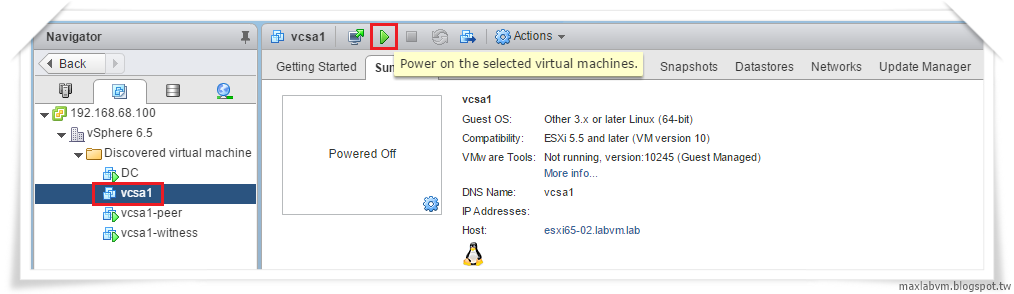
14.再次把已關閉VMware vCenter Server Appliance 6.5(Power on)開機驗證測試vCenter Server HA系統反應狀態。
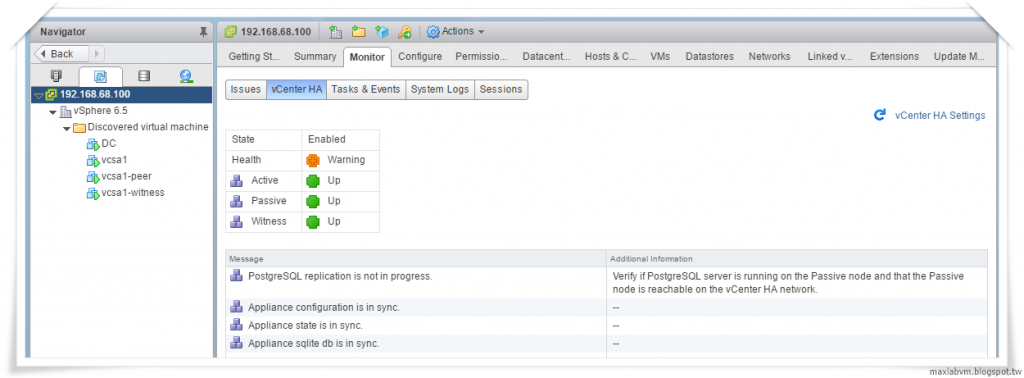
15.vCenetr HA Warning! PostgreSQL replication is not in progress.
系統顯示訊息:PostgreSQL 複寫不在進行中。
請確認 PostgreSQL伺服器是否在被動節點上執行。
16.All vCenter HA nodes are accessible and replication is enabled.
Automatic failover protection is enabled.
一段時間後,vCenter Server HA節點均可供存取,
且已啟用複寫。再次啟用vCenter Server HA自動容錯移轉保護機制。
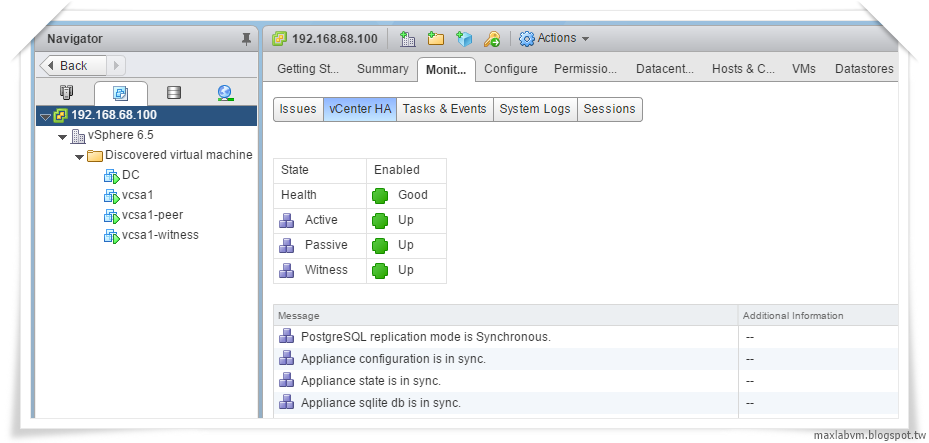
17.驗證vCenter Server HA自動容錯移轉保護機制狀態正常
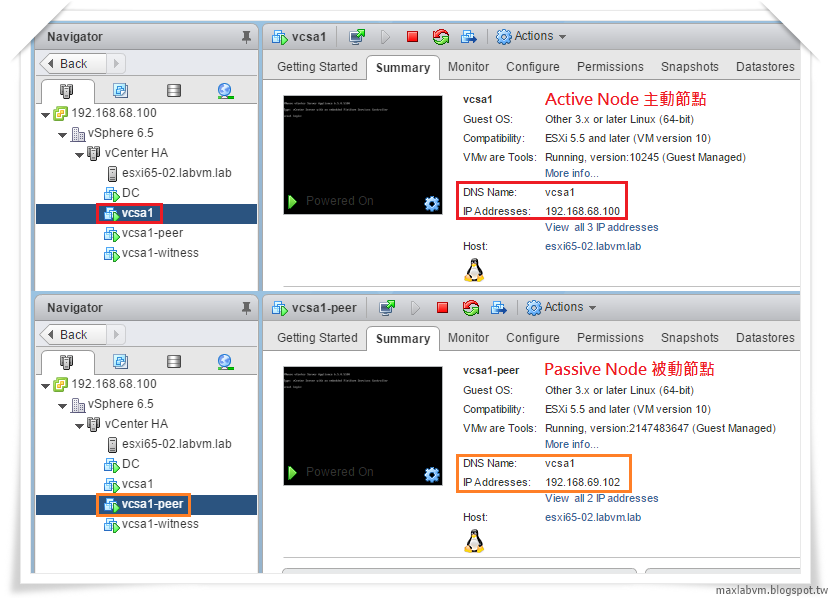
原本Active-vcsa1角色變為Passive Node被動節點,不再線上提供服務,
Passive-vcsa1-peer角色變為Active Node主動節點服務,
vCenter Server繼續運作(vCenter 管理IP不變,系統自動更換)。
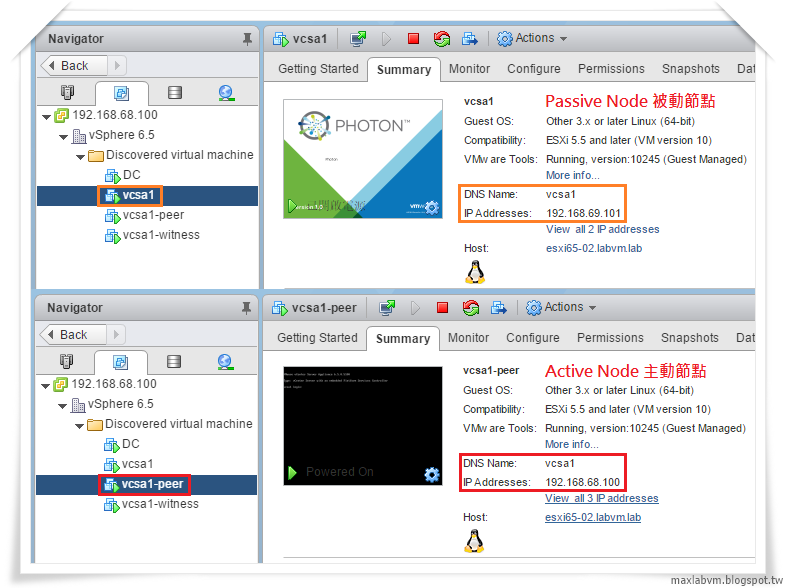
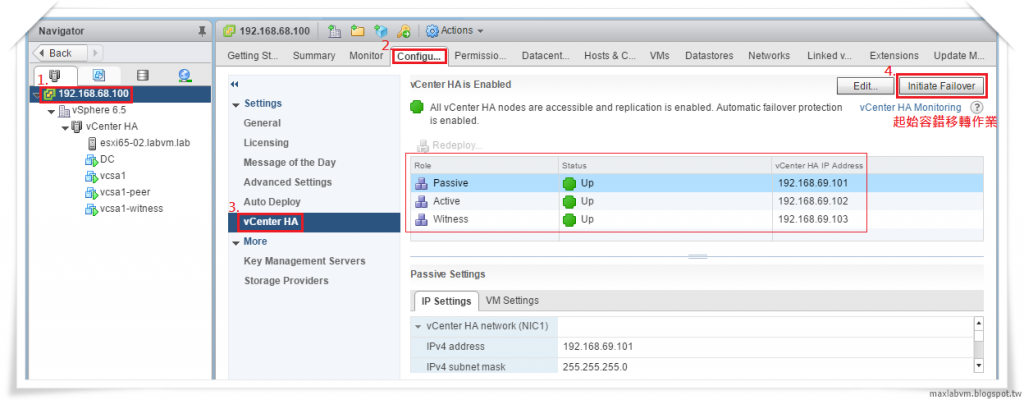
18.Initiate Failover.手動再執行容錯移轉作業
就可以把各角色互換回原正常狀態。
點選:ESXi Host➤Configure設定➤vCenter Server HA➤Initiate Failover
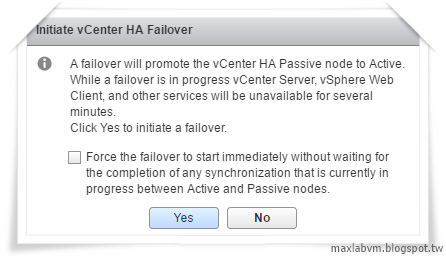
19.Initiate vCenter Server HA Failover
再次執行容錯移轉會將vCenter HA被動節點升級為主動節點。
正在進行容錯移轉時,vCenter Server、vSphere Web Client
和其它服務將會有數分鐘的時間無法使用。
請按一下Yes以起始容錯移轉。
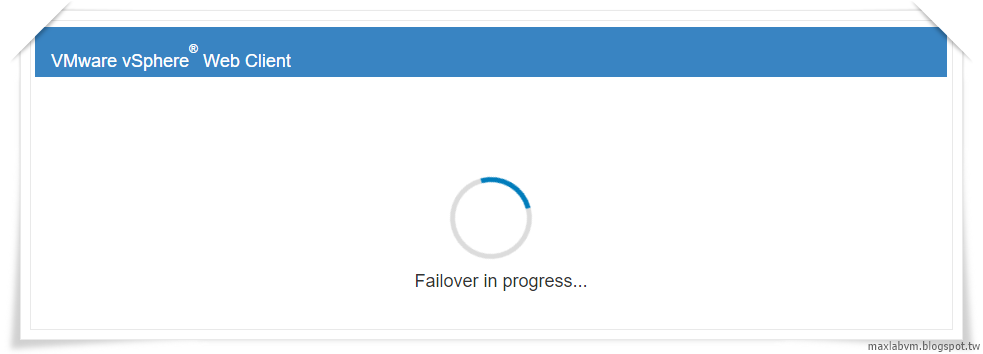
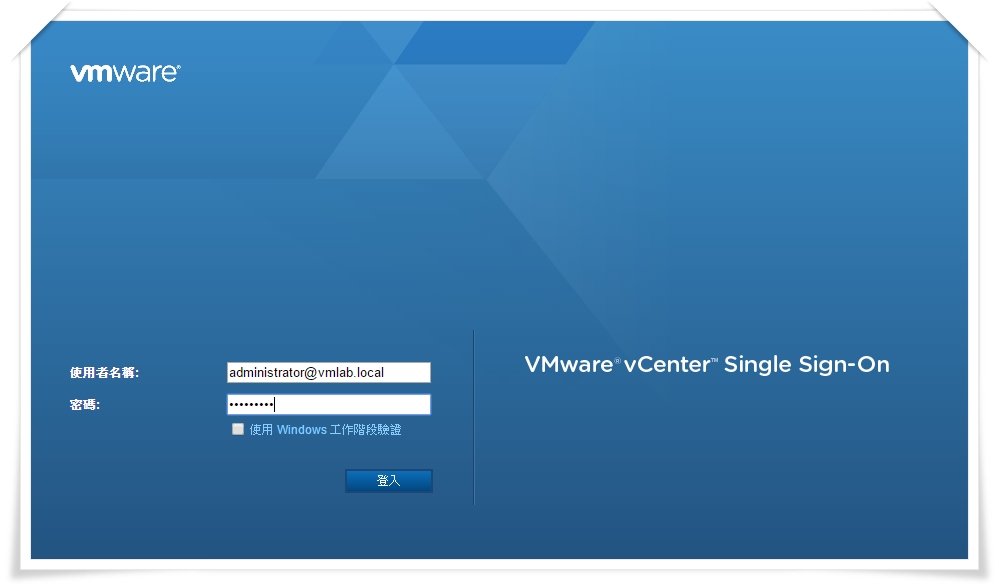
一段時間過後,會發現VMware vCenter Web Client登入畫面恢復正常,
請再次登入系統。
20.All vCenter HA nodes are accessible and replication is enabled.
Automatic failover protection is enabled.
一段時間後,vCenter HA節點均可供存取,Active Node主動節點、Passive Node被動節點角色恢復正常且已啟用複寫,
再次啟用vCenter Server HA自動容錯移轉保護。
Shut down the nodes in order.
如何按順序關閉vCenter HA叢集節點。
如果必須將vCenter Server HA叢集中所有節點重新開機,則必須遵循特定關閉順序,
防止被動節點承擔主動節點的角色。
1.以此順序關閉節點:(1) Passive Node被動節點(2) Active Node主動節點(3) Witness Node見證節點
2.重新啟動每個節點:您可以任何順序重新啟動節點。
Maintenance mode維護模式:
會啟用Active Node主動節點與Passive Node被動節點之間的複寫,
但已停用自動容錯移轉,即使Passive Node被動節點和Witness Node見證節點均無法使用,主動節點仍會繼續正常執行.
設定方式:
1.請點選:ESXi Host➤Configure設定➤vCenter Server HA➤Edit編輯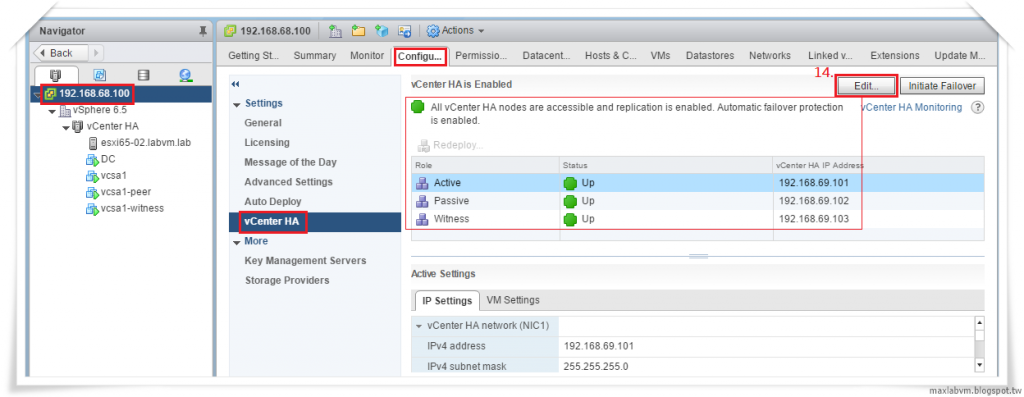
2.Edit Change the operating mode of vCenter HA to maintenance mode
將vCenter HA的作業模式變更為維護模式,
選擇完成請點選OK,繼續下一步。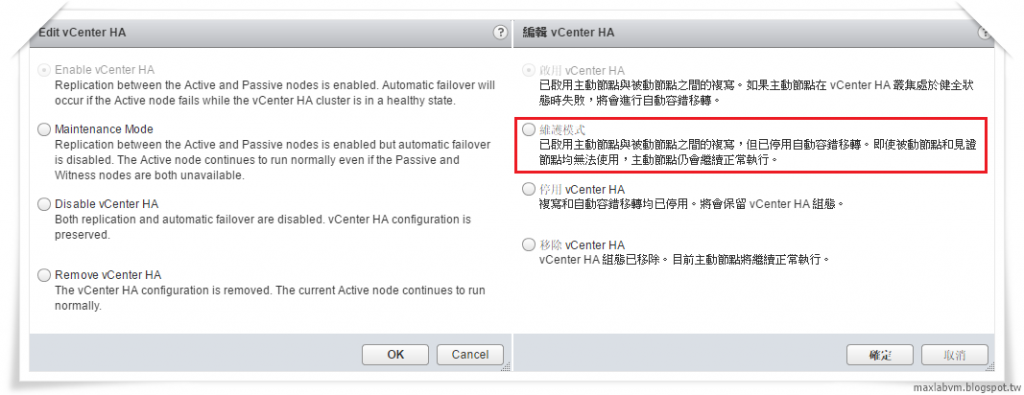
各節點系統(Active Node、Passive Node、Witness Node)
進入Maintenance mode維護模式: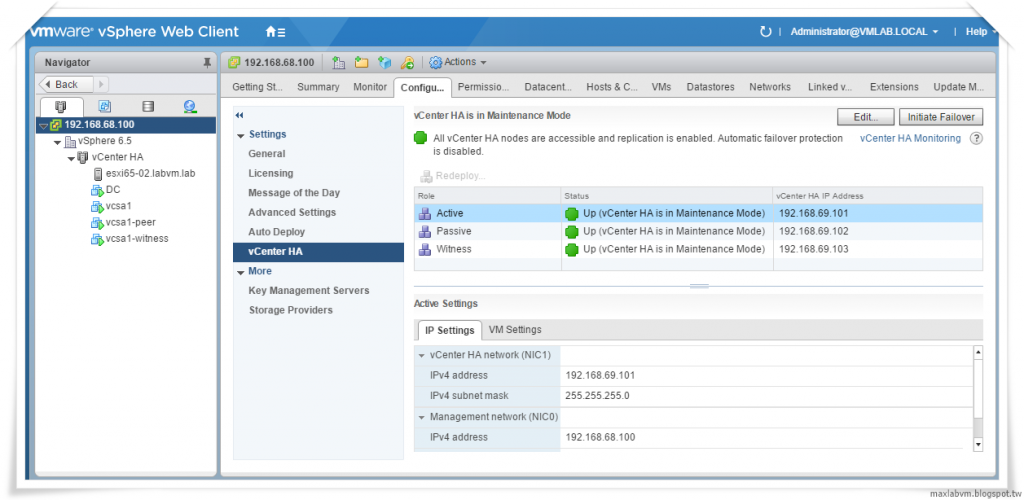
3.各節點啟動完成後,請點選:
ESXi Host➤Configure設定➤vCenter Server HA➤Edit編輯
選擇啟用vCenter Server HA,繼續運作高可用性保護容錯移轉架構。
Remove a vCenter HA Configuration. 如何移除vCenter HA高可用性保護。
如上圖:
1.請點選:ESXi Host➤Configure設定➤vCenter Server HA➤Edit編輯
2.請點選移除 Remove vCenter HA
■主動、被動和見證節點移除 vCenter HA 叢集的組態。
■主動節點做為獨立 vCenter Server Appliance 繼續執行。
■即使在設定程序中已新增第二個虛擬 NIC,移除程序也不會移除此虛擬NIC。
結語
透過vCenter High Availability (vCenter HA)高可用性保護架構進行容錯移轉時,
雖然vCenter Server、vSphere Web Client和其它服務將會短暫數分鐘的時間無法使用,
但此vCenter ServerHA架構非常實用,相信大家會非常喜歡,
請試試看專屬新版VMware vCenter Server Appliance 6.5才有的功能:vCenter Server High Availability高可用性保護架構。
參考資料:
1.VMware vSphere Blog:What's New in vSphere 6.5: vCenter Server
2.featurewalkthrough.vmware.com:Enabling vCenter HA-Basic
3.VMware vSphere 6.5 Documentation
4.vSphere可用性指南
本文完整章節發布於:Lab-VM Testing Blog

 max6886

 iThome鐵人賽
 看影片追技術