
第一週先使用 !hello 和 !ask 了解 Discord Bot 如何接收文字指令。
文字指令的優點是程式簡單,但使用者必須記得指令名稱與輸入格式。如果少打一個空格、忘記參數,Bot 才會在收到訊息後發現問題。
今天開始改用 Slash Command。使用者在 Discord 輸入 / 時,就能直接看到 Bot 提供的指令、說明與參數提示。
applications.commands Scope/hello 指令CommandTree.sync() 的用途/help、defer() 和 Followup 也會先放進文章,但它們是後面指令增加、模型開始處理耗時工作時才會真正用到的功能。
文字指令是一般 Discord 訊息:
!hello
!ask 請介紹 Python
Bot 必須讀取訊息內容,再由 commands.Bot 判斷這是不是一個指令。因此,程式和 Discord Developer Portal 都要啟用 Message Content Intent。
Slash Command 則是 Discord 原生的應用程式指令:
/hello
/help
使用者輸入 / 後,可以直接從選單看到指令說明。需要參數時,Discord 也會顯示欄位,減少輸入格式錯誤。
這兩種指令可以同時存在。這次保留 !hello,正式操作再逐步移到 Slash Command。
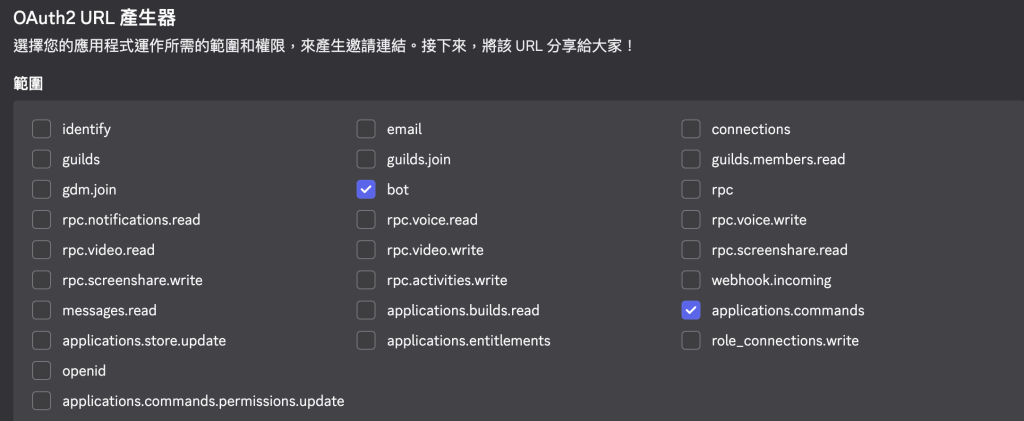
建立邀請連結時,Bot 除了 bot Scope,也需要 applications.commands,Slash Command 才能出現在伺服器中。
可以到 Discord Developer Portal 的 OAuth2 頁面重新確認:
OAuth2 → URL Generator → Scopes
勾選:
bot
applications.commands
如果先前的邀請連結沒有包含 applications.commands,可以重新產生連結並再次授權 Bot。
目前的 bot.py 已經使用自訂的 MyBot 類別。Slash Command 會註冊在 bot.tree:
@bot.tree.command(
    name="hello",
    description="確認機器人是否在線",
)
async def slash_hello(interaction: discord.Interaction):
    await interaction.response.send_message(
        f"你好,{interaction.user.mention}!",
        ephemeral=True,
    )
這裡的函式名稱使用 slash_hello,是為了和原本的文字指令函式 hello 區分。Discord 實際顯示的名稱仍由 name="hello" 決定。
Slash Command 收到的不是文字指令使用的 ctx,而是 discord.Interaction。其中包含執行指令的使用者、伺服器、頻道與這次互動的回覆狀態。
程式將 ephemeral 設為 True:
await interaction.response.send_message(
    "Bot 已正常上線。",
    ephemeral=True,
)
Ephemeral 訊息只有執行指令的使用者看得到,不會占用整個頻道。
它適合用在:
如果內容是會議結果或 Agent 的公開討論,就不應使用 Ephemeral,否則其他成員看不到。

只在 Python 中寫好 Slash Command 還不夠,還要把指令資料同步到 Discord。
目前可以放在 setup_hook():
class MyBot(commands.Bot):
    async def setup_hook(self):
        synced_commands = await self.tree.sync()
        print(f"已同步 {len(synced_commands)} 個斜線指令")
setup_hook() 會在 Bot 登入過程中執行一次,適合處理指令同步等初始化工作。
self.tree.sync() 沒有指定 Guild 時會同步全域指令。全域指令適合正式使用,但更新後不一定立刻顯示。
開發階段也可以只同步到測試伺服器。Guild 指令通常比較適合快速測試,但需要額外提供 Guild ID。這個系列先保留全域同步,讓程式碼維持簡單。
不建議在
on_ready()每次觸發時都重複同步。Bot 重新連線時,on_ready()可能再次執行;初始化工作放在setup_hook()會比較清楚。
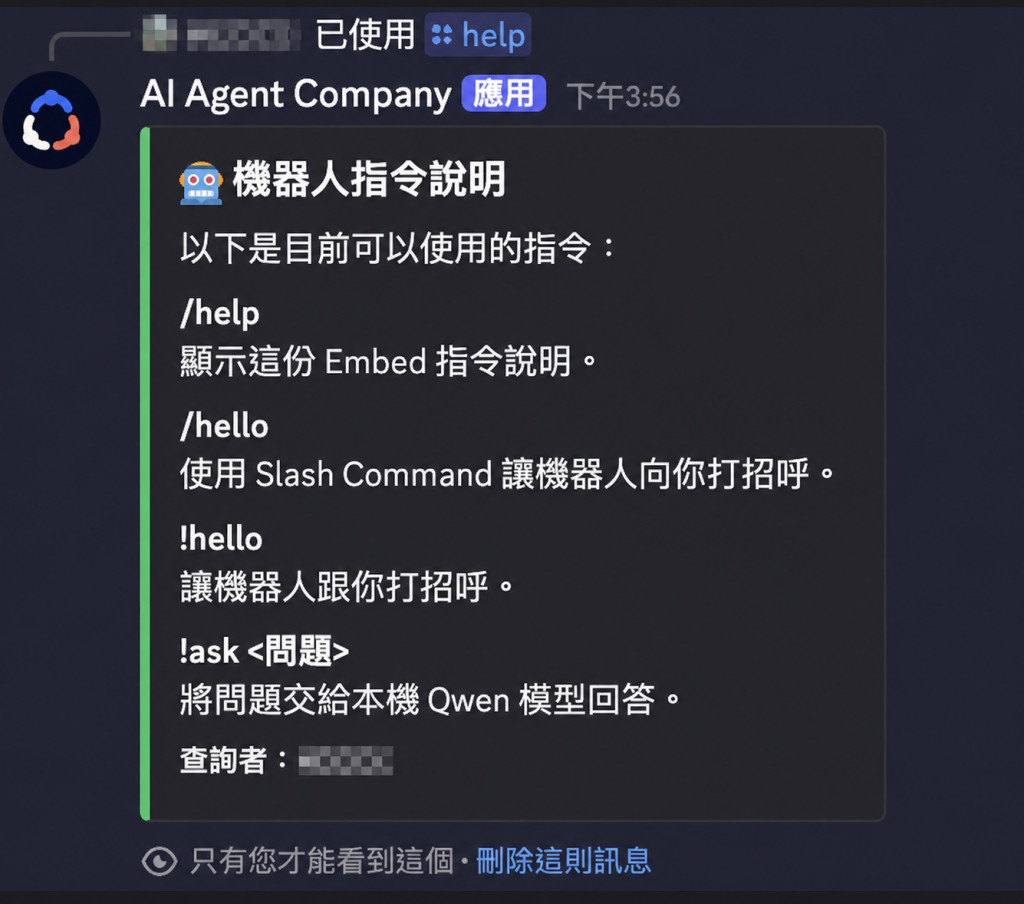
目前只有少量指令,其實使用純文字就夠了。這裡先準備一個 Embed 版本,之後指令增加時不用重新整理顯示方式。
@bot.tree.command(
    name="help",
    description="顯示機器人指令說明",
)
async def help_command(interaction: discord.Interaction):
    embed = discord.Embed(
        title="機器人指令說明",
        description="以下是目前可以使用的指令:",
        color=discord.Color.green(),
    )

    embed.add_field(
        name="/hello",
        value="確認機器人是否在線。",
        inline=False,
    )
    embed.add_field(
        name="!ask 問題",
        value="將問題交給本機 Qwen。",
        inline=False,
    )

    await interaction.response.send_message(
        embed=embed,
        ephemeral=True,
    )
Embed 可以將標題、說明與不同指令分開顯示。這裡仍使用 Ephemeral,因為說明頁只需要讓查詢者看到。
/hello 和 /help 都能立刻產生結果,所以可以直接呼叫:
interaction.response.send_message()
但 Qwen 推論可能需要數秒,第一次執行還可能包含模型載入時間。這種指令不適合等模型完成後才回應 Discord。
可以先使用 defer() 告訴 Discord:「這個指令已經收到,Bot 還在處理。」
await interaction.response.defer(thinking=True)

result = await llm_service.chat(question)

await interaction.followup.send(result.content[:1900])
呼叫 defer(thinking=True) 後,Discord 會顯示 Bot 正在處理。
一次 Interaction 只能有一個初始回應。defer() 已經占用初始回應,因此模型完成後不能再次呼叫 interaction.response.send_message(),而要改用:
interaction.followup.send()
可以把流程記成:
收到 Slash Command
    ↓
defer() 先確認收到
    ↓
執行耗時工作
    ↓
followup.send() 傳送結果
今天先把流程記下來,等模型問答改成 Slash Command 時再實際使用。
這段同樣先當作後續會用到的準備。指令一多,如果每個地方都各自處理錯誤,訊息很容易不一致。
文字指令使用 on_command_error(),Slash Command 則可以註冊 bot.tree.error:
@bot.tree.error
async def on_app_command_error(interaction, error):
    message = "指令執行時發生錯誤,請稍後再試。"

    if interaction.response.is_done():
        await interaction.followup.send(
            message,
            ephemeral=True,
        )
    else:
        await interaction.response.send_message(
            message,
            ephemeral=True,
        )
這裡先檢查 interaction.response.is_done(),原因和前面的 defer() 相同:
interaction.response.send_message()。interaction.followup.send()。正式專案還可以針對冷卻時間、權限不足與參數錯誤顯示不同訊息,並只把完整例外寫入終端機日誌。
啟動 Bot:
source .venv/bin/activate
python bot.py
終端機預期會看到同步數量,例如:
已同步 2 個斜線指令
機器人已上線:Bot 名稱
接著在 Discord 輸入 /,確認選單中是否出現:
/hello
/help
如果指令沒有出現,可以依序檢查:
applications.commands。setup_hook() 是否有執行 self.tree.sync()。全域指令更新可能不會立即反映,因此不要只靠重複啟動 Bot 判斷同步失敗。
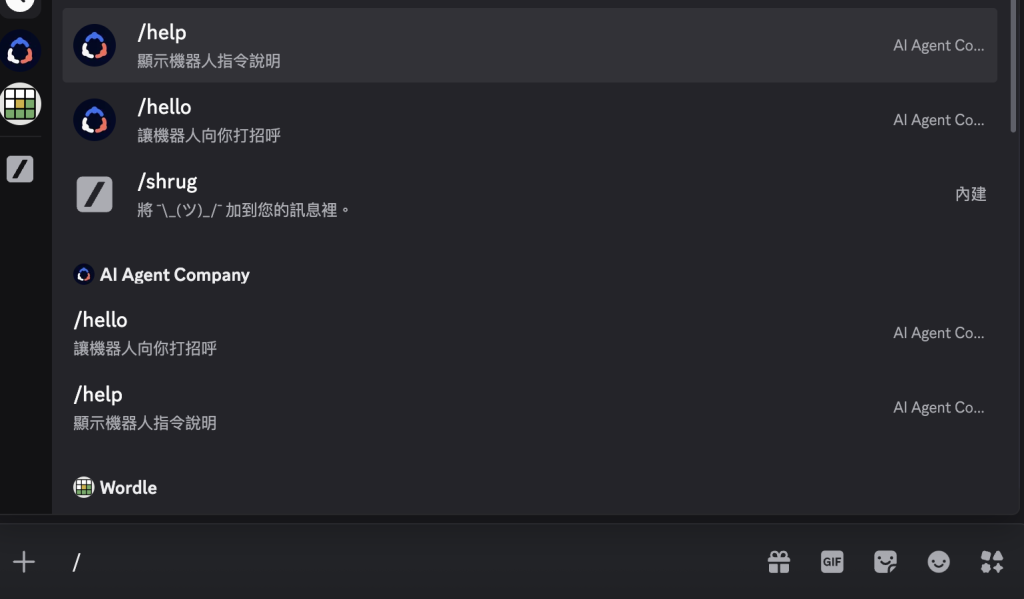
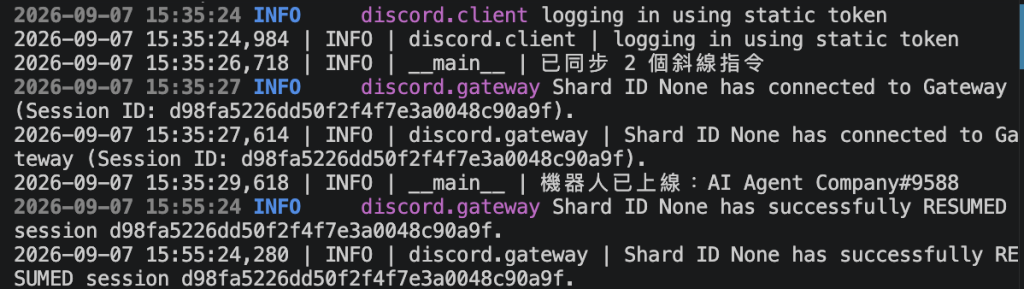
這篇先完成 Slash Command 的程式與同步方式。/hello 和 /help 是否出現在 Discord,仍要等實際操作後確認並補上畫面。
後面把模型問答改成 Slash Command 時,才會實際用 defer() 先回應,再透過 Followup 傳送結果。下一篇開始建立專案資料與 /projects。



 iThome鐵人賽
 看影片追技術