
OpenAPI 負責描述 API,Swagger UI 負責顯示與測試 API
Swagger UI 會列出 TaskFlow 的 API,例如:
們使用微軟文件介紹的整合方式。[]https://learn.microsoft.com/fil-ph/aspnet/core/fundamentals/openapi/using-openapi-documents?view=aspnetcore-10.0&utm_source=chatgpt.com(http://)
dotnet add package Swashbuckle.AspNetCore.SwaggerUI
這個套件會讓我們在瀏覽器中使用 Swagger UI,而不需要自行設計測試網頁。
var builder = WebApplication.CreateBuilder(args);

// OpenAPI
builder.Services.AddOpenApi();

// Controller
builder.Services.AddControllers();

var app = builder.Build();

// 開發環境才啟用 OpenAPI 和 Swagger UI
if (app.Environment.IsDevelopment())
{
    app.MapOpenApi();

    app.UseSwaggerUI(options =>
    {
        options.SwaggerEndpoint("/openapi/v1.json", "v1");
    });
}

app.UseHttpsRedirection();

// 啟用 Controller 路由
app.MapControllers();

// 測試路由
app.MapGet("/test", () => "伺服器正常運作!");

app.Run();
結果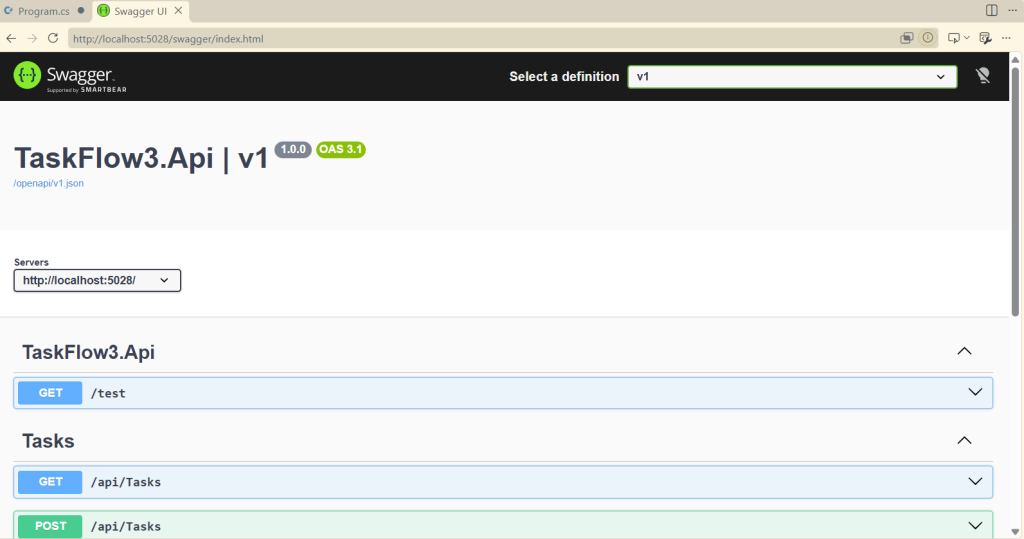
選擇 API,例如 GET /api/tasks
按下 Try it out
輸入必要的參數或 JSON
按下 Execute
查看 Server response

 414570681

 iThome鐵人賽
 看影片追技術