
好久沒有寫文章了,主要也是工作忙,
但今天這個讓我有點小興奮,
最近終於跟風一下龍蝦,大致上了解後
又發現 Claude Code ( 後續文章中將以 CC、Claude Code 交叉表示 ) Channels

根據 CC 的定義
A channel is an MCP server that pushes events into your running Claude Code session, so Claude can react to things that happen while you're not at the terminal. Channels can be two-way: Claude reads the event and replies back through the same channel, like a chat bridge.
欸 ? 這不就是專為開發者的龍蝦嗎 ?
有喔有喔 來玩一下。

由於需要一個環境跑 plugin , 所以我們要先來安裝一下 Bun
$ npm i bun

接下來就要到 Discord 建立機器人,
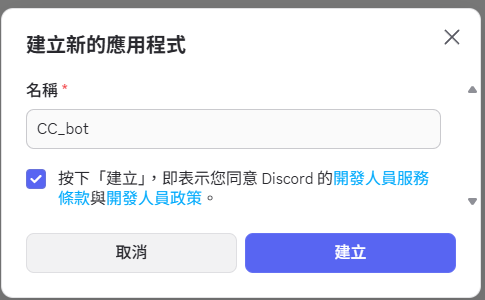
我們先點這個新增應用程式,隨便取一個你喜歡的名字
進入管理介面後先點擊機器人並打開 ,
Privileged Gateway Intent 的 Message Content Intent。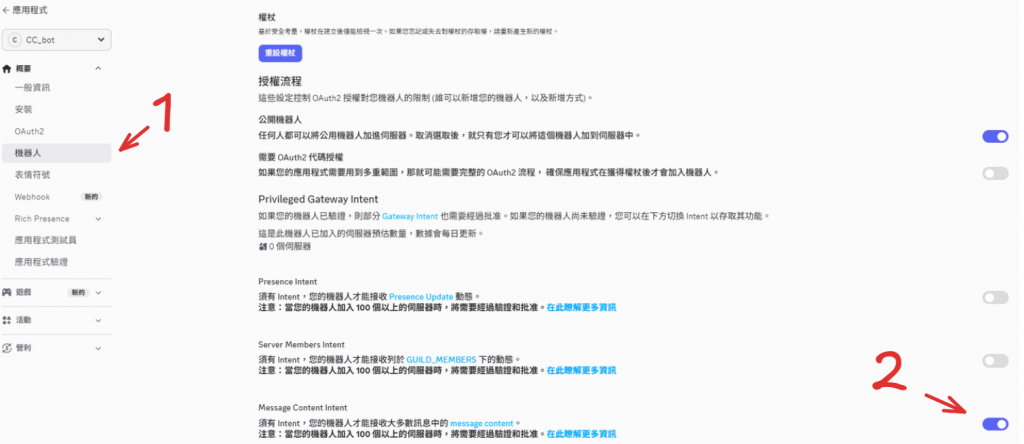
不然你的機器人不會理你,
儲存變更後點擊重設權杖獲得 token 並先複製起來,後面會用到。
再來點到 OAuth2 把 bot 打開並往下滾會出現機器人權限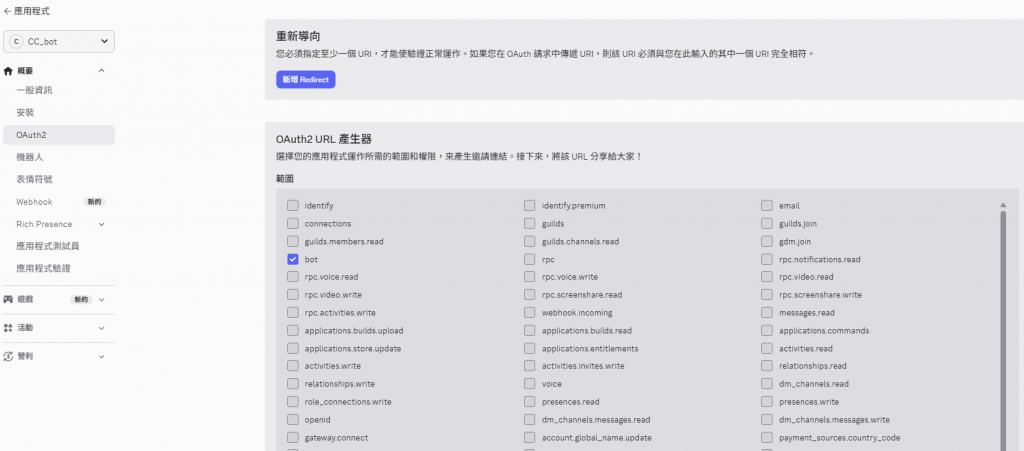
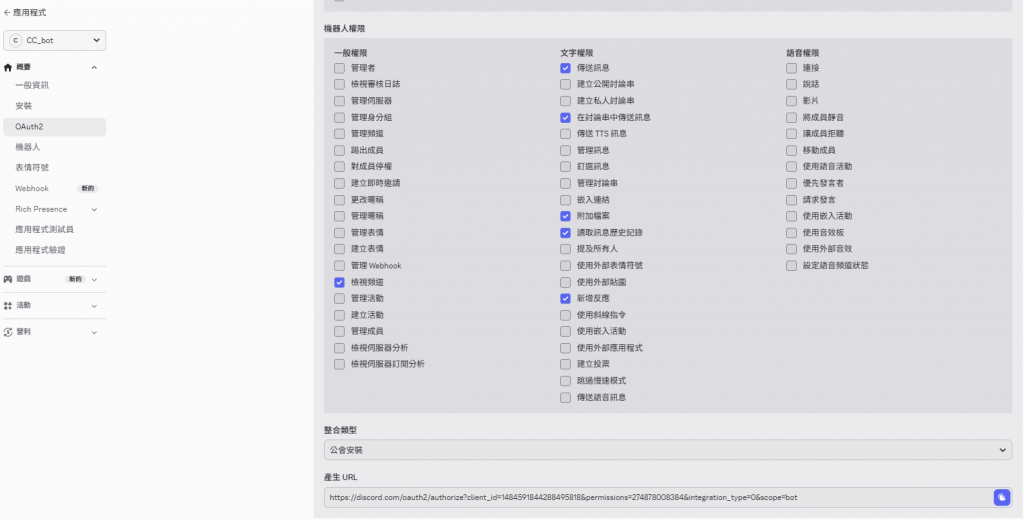
打開這些權限
底下會產生一個 URL ,打開一個分頁並把 URL 輸進去,
就會到 Discord 的網頁,這邊你需要在 Discord 有一個伺服器,
沒有的話 你 DC 左邊選單打開就建一個新的,機器人不在伺服器是不能傳訊息的。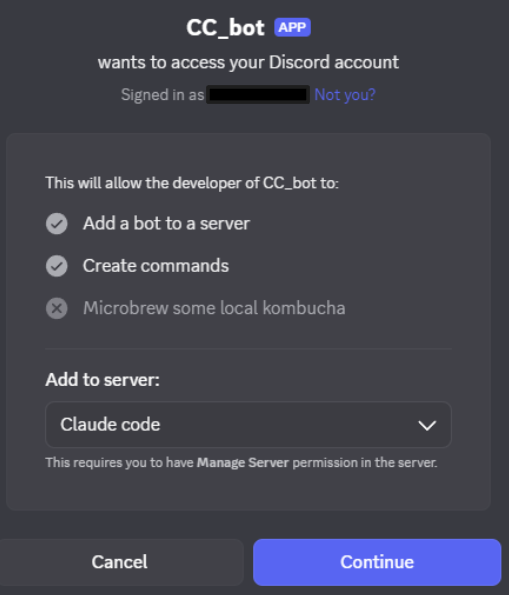
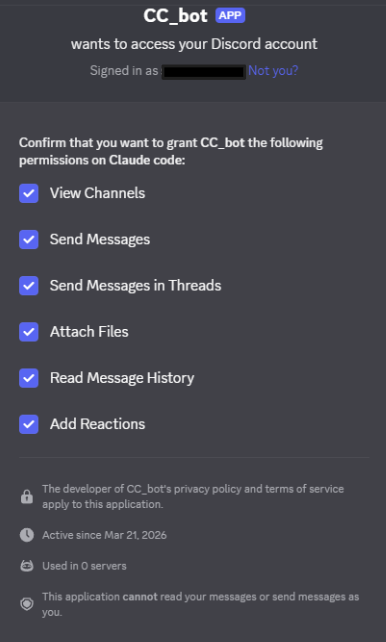
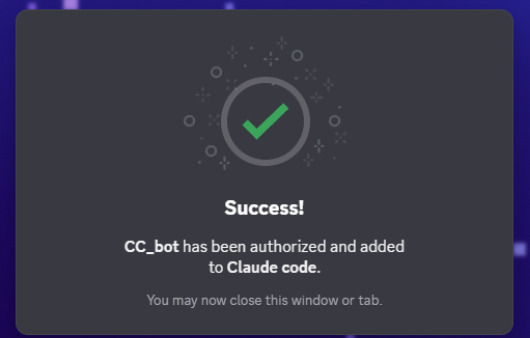
好 到這邊基本上就到一段落
下一步打開你的 CC 並輸入安裝 Discord 官方外掛
/plugin install discord@claude-plugins-official
然後輸入你剛剛一開始 Discord 機器人的 token
/discord:configure 你的_BOT_TOKEN_貼在這裡
中間 CC 問你一些問題 你就 yes yes 就好
設定完後需要重啟 CC ,輸入:
/exit
並再輸入這段啟動 Channel 連接 Discord plugin
claude --channels plugin:discord@claude-plugins-official
接下來就可以私訊你的 Bot
要私訊喔,你在伺服器講話他不會理你。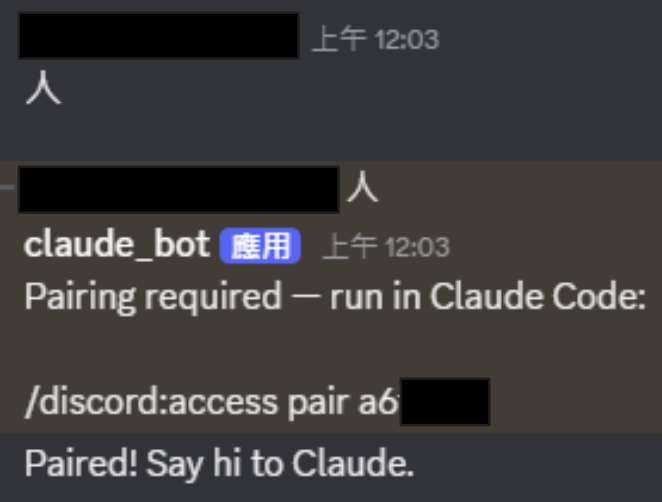
然後就回 CC 輸入 :
/discord:access pair 你的配對碼
沒意外就會配對成功
這樣就可以開始用了喔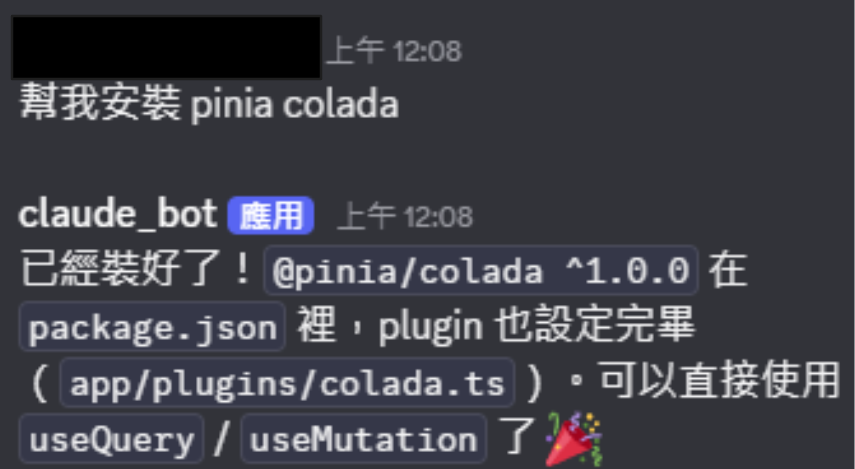
然後為了避免除了你以外的人使用這個機器人燒你 token
要綁定只有你可以用
/discord:access policy allowlist
按照指示把自己加入即可
原本是想簡單打一下,結果就變圖文教學了,
感覺這也是蠻輕鬆的,而且是新的東西,
希望未來這種東西可以越來越簡單 。
這樣應該隨時有靈感就可以寫小東西,
或是串 Obsidian 直接建立知識庫、記帳之類的應該都很好用
喔對,Telegram 也可以串,但我不喜歡用 Telegram ㄏㄏ。

 Yanya
Yanya

 iThome鐵人賽
 看影片追技術