iT邦幫忙

2026 iThome 鐵人賽

DAY 4
0
IT Operation

大學生的VirtualBox虛擬機與Ubuntu實戰30天系列 第 4

Day 04|實戰安裝:VirtualBox 下載

  • 分享至 

  • xImage
  •  

昨天我們認識了VirtualBox的核心優勢,今天要正式動手安裝了!

1.官網下載
官網點擊Download後,找到自己筆電的相對應系統並下載

步驟:安裝主程式
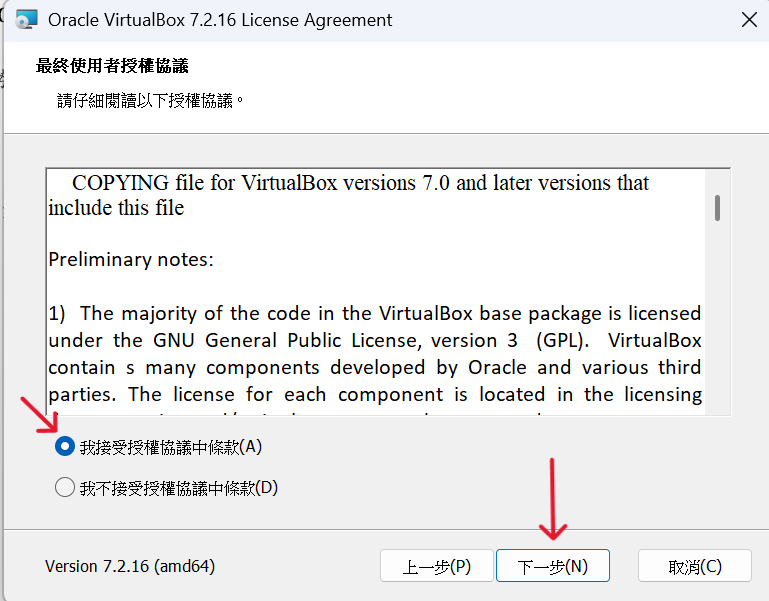
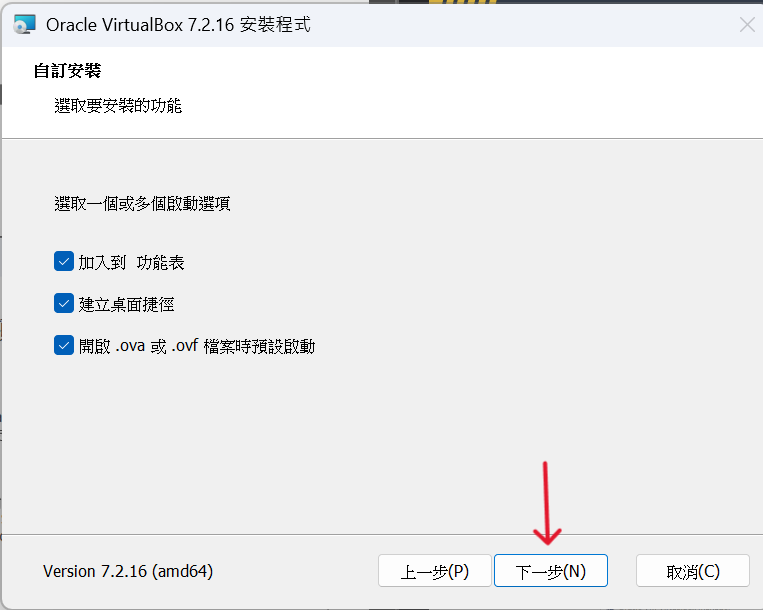
(1)雙擊執行下載的安裝檔(以 Windows 為例,下載Windows hosts)。
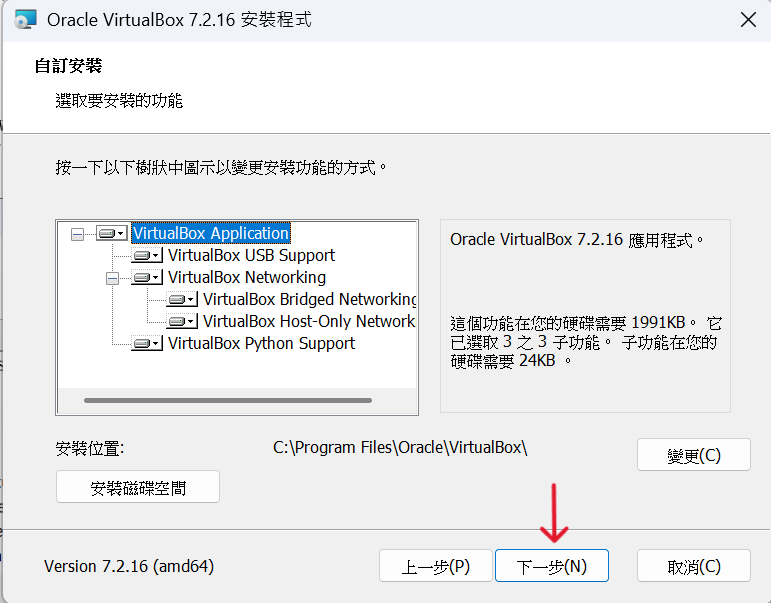
(2)自訂設定:預設安裝所有功能組件即可,安裝路徑建議維持預設。
https://ithelp.ithome.com.tw/upload/images/20260903/20183886vmQxPGP20V.png
https://ithelp.ithome.com.tw/upload/images/20260903/20183886hAcN0OulFq.png
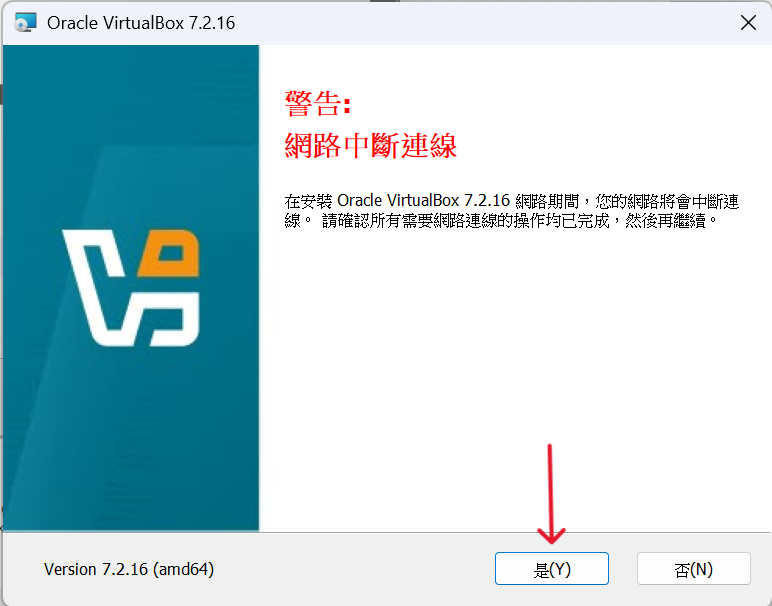
(3)網路中斷連線警告:安裝過程中會提示「安裝期間會中斷網路連線」,點擊「」繼續。
https://ithelp.ithome.com.tw/upload/images/20260903/20183886EMn3vhGkDc.png
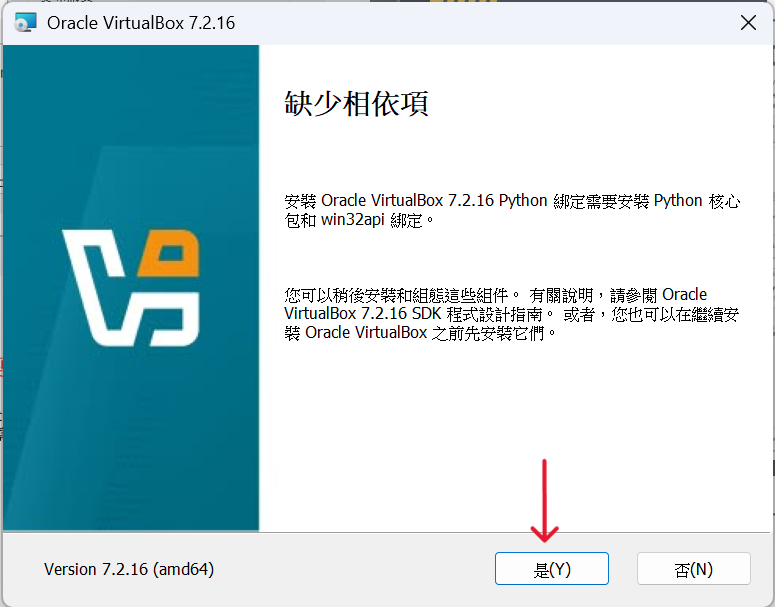
(4)缺少相依項警告:若跳出提示缺少Python綁定組件,直接點擊「」即可,這不影響一般日常虛擬機的建立與運作。
https://ithelp.ithome.com.tw/upload/images/20260903/20183886KaNNpq1F51.png
https://ithelp.ithome.com.tw/upload/images/20260903/20183886GquWPjHEZ5.png
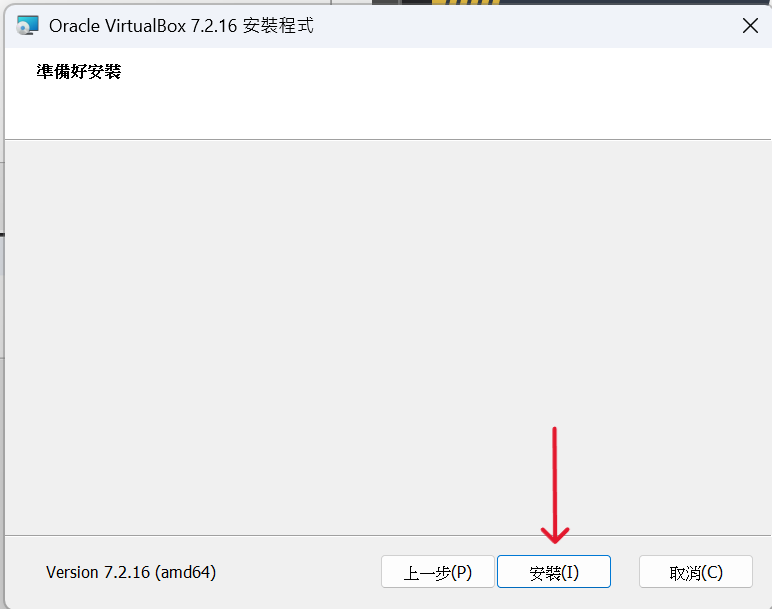
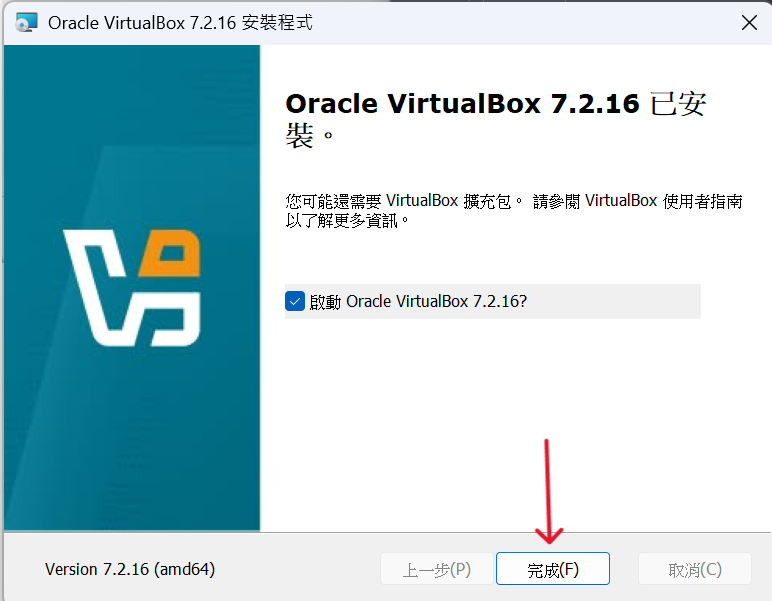
(5)點擊「安裝」,等待進度條跑完後點擊「完成」。
https://ithelp.ithome.com.tw/upload/images/20260903/20183886lMqwyCdfz0.png
https://ithelp.ithome.com.tw/upload/images/20260903/20183886Tv4BYjsEvS.png
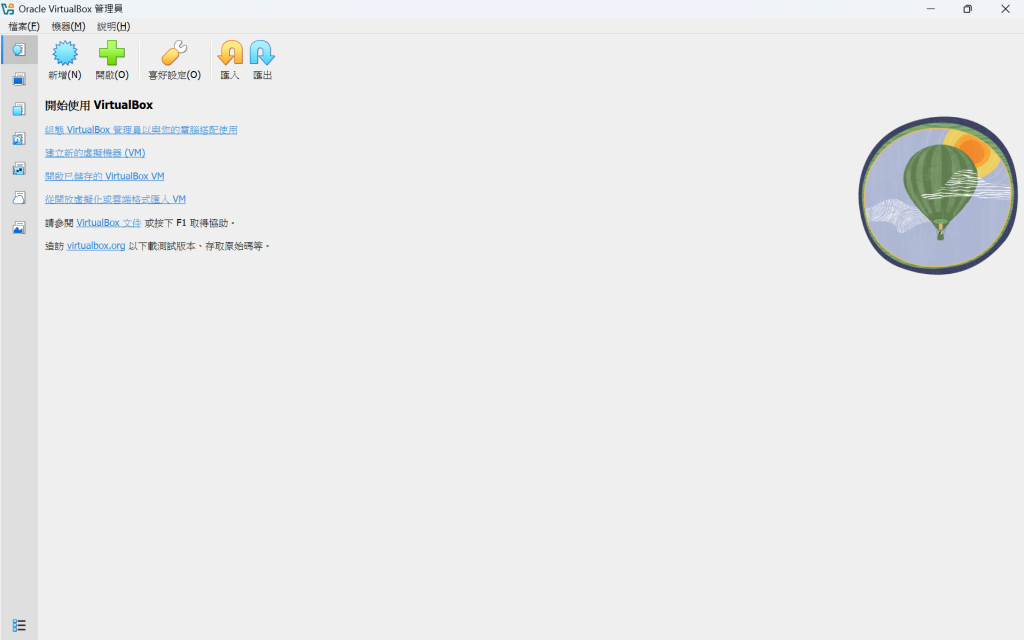
(6)安裝完成後,啟動應用程式,進入到首頁,就完成啦!
https://ithelp.ithome.com.tw/upload/images/20260903/20183886uxssPECZwa.png

|明日目標:下載適合新手的 Linux ISO 映像檔-Ubuntu!|


上一篇
Day 03|為什麼選VirtualBox當作第一套虛擬機?
下一篇
Day 05|為什麼首選 Ubuntu?ISO 映像檔下載與版本挑選指南
系列文
大學生的VirtualBox虛擬機與Ubuntu實戰30天5
圖片
  熱門推薦
圖片
{{ item.channelVendor }} | {{ item.webinarstarted }} |
{{ formatDate(item.duration) }}
直播中

尚未有邦友留言

立即登入留言