
第 10 章讓玩家有了第一個可累積狀態:
leaderstats
  Crystals
玩家碰到水晶時,Crystals.Value 會增加。
Roblox 內建 leaderboard 也會顯示數值。
但 leaderboard 不是遊戲 HUD。
它比較像開發階段的快速確認工具。玩家真正需要的是更貼近遊戲目標的回饋:
這一章要建立第一個 AdventureHUD。
它會顯示兩個資訊:
Crystals: 0
Objective: Collect 3 crystals
當玩家收集水晶時,HUD 會更新水晶數。
當水晶數達到 3,目標文字可以改成:
Objective: Return to the Guide
本章不做完整 UI 美術。
本章也不做 RemoteEvent。
這章只建立一件事:讓第 10 章 server 管理的狀態,在玩家畫面上變成清楚回饋。
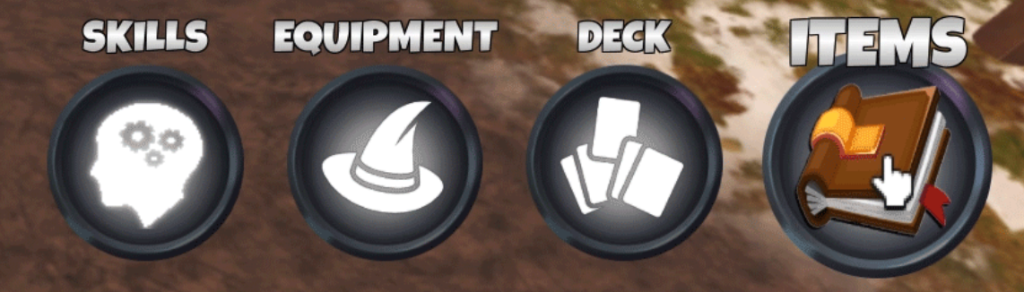
圖 11-1 UI 的工作是回應玩家狀態與操作;資訊層級、對比與出現時機比單純裝飾更重要。
本章依據以下 Roblox 官方文件撰寫:
官方 on-screen UI 文件說明,ScreenGui 會裝載顯示在玩家螢幕上的 UI 物件。
如果把 ScreenGui 放在 StarterGui,玩家加入並生成角色時,Roblox 會把它複製到該玩家的 PlayerGui。
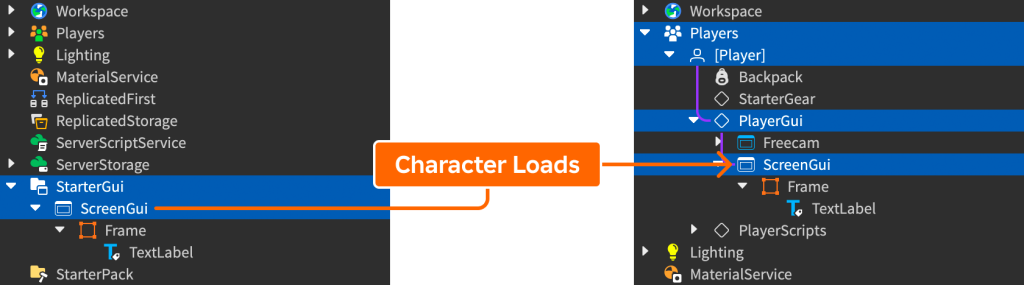
圖 11-2 StarterGui 保存 UI 範本,執行時每位玩家在自己的 PlayerGui 取得副本;更新畫面時要操作玩家端的副本。
這代表:
StarterGui = UI 範本
PlayerGui = 玩家實際看到和執行的 UI
本章會第一次使用 LocalScript。
它的工作不是修改遊戲規則,而是讀取玩家自己的狀態,更新畫面文字。
這個界線很重要:
Server Script 管理權威狀態
LocalScript 管理玩家畫面回饋
第 12 章會正式談 client/server 分工與 RemoteEvent。
本章先讓你看到 UI 為什麼通常在 client 端工作。
目前狀態:
ServerScriptService
  CrystalCollectionService

Players
  PlayerName
    leaderstats
      Crystals
第 10 章已經讓 Crystals.Value 可以增加。
本章要新增:
StarterGui
  AdventureHUD
    MainFrame
      CrystalCountLabel
      ObjectiveLabel
    AdventureHUDController
其中:
AdventureHUD 是 ScreenGui。MainFrame 是 HUD 的容器。CrystalCountLabel 顯示水晶數。ObjectiveLabel 顯示目前目標。AdventureHUDController 是 LocalScript。本章不需要 TextButton。
但會順便說明:如果之後要做商店、背包、設定選單,才會開始使用 TextButton 或 ImageButton 的 Activated event。
現在先不要把 HUD 做成一堆按鈕。
HUD 的第一個責任是回饋,不是裝飾。
請在 Assistant 輸入:
【Ch11 主任務|建立 HUD 回饋】
我正在製作 Roblox Studio 專案 AI Adventure Island。

目前第 10 章已經有:
- ServerScriptService.CrystalCollectionService
- 玩家加入時會建立 player.leaderstats.Crystals
- 玩家碰到水晶時 Crystals.Value 會增加

請幫我建立第一個 HUD,讓玩家在畫面上看到自己的水晶數與目前目標。

請完成:
1. 在 StarterGui 建立 ScreenGui,名稱為 AdventureHUD。
2. AdventureHUD.ResetOnSpawn = false。
3. AdventureHUD 使用安全區域,不要讓 UI 被 Roblox top bar 或 mobile notch 擋住。
4. 在 AdventureHUD 裡建立 Frame,名稱為 MainFrame。
   - 放在畫面左上方,但避開 top bar。
   - 使用 UDim2 的相對位置和合理 offset。
   - 不要佔太大畫面。
5. 在 MainFrame 裡建立 TextLabel,名稱為 CrystalCountLabel。
   - 初始文字為 "Crystals: 0"
6. 在 MainFrame 裡建立 TextLabel,名稱為 ObjectiveLabel。
   - 初始文字為 "Objective: Collect 3 crystals"
7. 在 AdventureHUD 裡建立 LocalScript,名稱為 AdventureHUDController。
8. LocalScript 要:
   - 取得 Players.LocalPlayer。
   - 等待 player.leaderstats.Crystals。
   - 將 CrystalCountLabel.Text 更新成目前數值。
   - 監聽 Crystals.Changed,數值改變時更新文字。
   - 如果 Crystals.Value >= 3,將 ObjectiveLabel.Text 改成 "Objective: Return to the Guide"。
9. 不要修改 server state。
10. 不要建立 RemoteEvent、DataStore、商店、背包或完整任務系統。

完成後請列出:
- Explorer 最終階層
- 每個 UI 物件的用途
- LocalScript 做了什麼
- Playtest 時我要如何檢查 desktop 和 mobile 尺寸
這個 prompt 的核心是:
UI 讀狀態,不改狀態。
它也明確阻止 Assistant 提前建立 RemoteEvent。第 12 章會教 RemoteEvent,現在還不需要。
你希望 Explorer 接近這樣:
StarterGui
  AdventureHUD
    MainFrame
      CrystalCountLabel
      ObjectiveLabel
    AdventureHUDController
Play mode 後,Roblox 會複製成:
Players
  PlayerName
    PlayerGui
      AdventureHUD
        MainFrame
          CrystalCountLabel
          ObjectiveLabel
        AdventureHUDController
這一點很重要。
你在 edit time 看到的是 StarterGui。
玩家實際執行時看到的是 PlayerGui 裡的 copy。
Assistant 可能產生的 LocalScript 類似:
local Players = game:GetService("Players")

local player = Players.LocalPlayer
local playerGui = player:WaitForChild("PlayerGui")
local adventureHUD = playerGui:WaitForChild("AdventureHUD")
local mainFrame = adventureHUD:WaitForChild("MainFrame")
local crystalCountLabel = mainFrame:WaitForChild("CrystalCountLabel")
local objectiveLabel = mainFrame:WaitForChild("ObjectiveLabel")

local leaderstats = player:WaitForChild("leaderstats")
local crystals = leaderstats:WaitForChild("Crystals")

local function updateHUD()
	crystalCountLabel.Text = "Crystals: " .. crystals.Value

	if crystals.Value >= 3 then
		objectiveLabel.Text = "Objective: Return to the Guide"
	else
		objectiveLabel.Text = "Objective: Collect 3 crystals"
	end
end

updateHUD()
crystals.Changed:Connect(updateHUD)
你的結果可能略有不同,但應該具備:
Players.LocalPlayer
PlayerGui
WaitForChild()
CrystalCountLabel.Text
ObjectiveLabel.Text
crystals.Changed:Connect(updateHUD)
如果 Assistant 寫的是 server Script 來改 UI,你要停下來。
本章的 UI 更新應該由 client 的 LocalScript 來處理。
StarterGui 是 UI 的範本容器。
你放在 StarterGui 裡的 ScreenGui,會在玩家加入並生成角色時複製到玩家的 PlayerGui。
可以這樣理解:
StarterGui.AdventureHUD
  = 每個玩家都會拿到的 HUD 範本

Players.PlayerName.PlayerGui.AdventureHUD
  = 玩家實際畫面上的 HUD
所以 LocalScript 常常要從 PlayerGui 找 UI:
local playerGui = player:WaitForChild("PlayerGui")
local adventureHUD = playerGui:WaitForChild("AdventureHUD")
如果你在 Play mode 修改 PlayerGui 裡的 UI,停止 Play 後可能不會保留。
如果你在 edit time 修改 StarterGui 裡的 UI,下一次 Play 時會重新複製給玩家。
這是初學 UI 時最容易混淆的地方。
ScreenGui 是 2D on-screen UI 的主要容器。
本章的 AdventureHUD 就是 ScreenGui。
建議設定:
Name = AdventureHUD
ResetOnSpawn = false
DisplayOrder = 10
ResetOnSpawn=false 的意思是玩家重生時不要重新刪掉再複製 HUD。對 HUD 來說,通常保持穩定比較好。
DisplayOrder 用來控制多個 ScreenGui 的層級。
本章只有一個 HUD,先設一個合理值即可。之後如果有選單、商店、通知,它們可以使用更高的 DisplayOrder。
安全區域也要注意。
官方文件提醒,手機可能有 notch、cutout,Roblox 也有 top bar。包含互動或重要資訊的 UI 不應被遮住。
本章不要使用全螢幕無視 safe area 的做法。
Frame 是基本 UI 容器。
本章用 MainFrame 包住兩個文字:
MainFrame
  CrystalCountLabel
  ObjectiveLabel
Frame 的用途不是裝飾卡片,而是讓 HUD 有一個穩定區域:
一開始可以用簡單設定:
Position = UDim2.new(0, 24, 0, 88)
Size = UDim2.new(0, 280, 0, 86)
BackgroundTransparency = 0.25
這裡使用 offset,是因為 HUD 左上角資訊通常需要穩定尺寸。
但不要把所有 UI 都用固定像素塞滿。
mobile 上畫面小,UI 必須留出足夠空間,不要壓到虛擬搖桿、跳躍按鈕或核心 UI。
TextLabel 是本章顯示文字的核心。
你會有兩個:
CrystalCountLabel
ObjectiveLabel
CrystalCountLabel 顯示短數值:
Crystals: 2
ObjectiveLabel 顯示目前目標:
Objective: Collect 3 crystals
這兩個 Label 的差異是:
CrystalCountLabel 是狀態數字。ObjectiveLabel 是行動引導。UI 不只是把資料放到螢幕上。
UI 要回答玩家此刻最關心的問題:
我有什麼?
我下一步要做什麼?
第 11 章的 HUD 就是這兩句。
第 9 章和第 10 章都使用 server Script。
第 11 章第一次使用 LocalScript。
它跑在 client,適合處理玩家自己的畫面與輸入。
這段程式的資料流是:
player.leaderstats.Crystals
  -> LocalScript 讀取 Value
  -> 更新 TextLabel.Text
注意:LocalScript 不應該決定玩家是否真的收集到水晶。
那是 server 的責任。
LocalScript 只把已存在的狀態顯示出來。
這是很重要的安全邊界:
client 可以顯示狀態
server 決定狀態
本章不深入安全,因為第 12 章會正式談 client/server 分工。
但你從這裡就要開始建立直覺。
這行讓 HUD 會跟著數值改變:
crystals.Changed:Connect(updateHUD)
意思是:
當 Crystals 的 Value 改變時,呼叫 updateHUD。
這比每一秒檢查一次數值更直接。
UI 回饋常常是事件驅動:
本章先從 IntValue.Changed 開始。
之後你會看到更多 UI 事件,例如 TextButton.Activated。
但現在不要急著做按鈕。
先讓狀態顯示正確。
進入 Play mode。
檢查:
1. 畫面左上是否看到 AdventureHUD?
2. CrystalCountLabel 是否顯示 Crystals: 0?
3. ObjectiveLabel 是否顯示 Objective: Collect 3 crystals?
4. 走去碰 Crystal_01。
5. HUD 是否變成 Crystals: 1?
6. 碰到第三顆水晶後,Objective 是否變成 Return to the Guide?
7. leaderboard 的 Crystals 和 HUD 的 Crystals 是否一致?
再用 Device Emulator 或 mobile viewport 檢查:
UI 是否被 Roblox top bar 擋住?
UI 是否遮住虛擬搖桿?
UI 是否遮住 jump button?
文字是否太小?
文字是否超出 Frame?
如果 HUD 在 desktop 好看,但 mobile 上擋住操作,那它還不合格。
Roblox 是跨裝置平台,UI 不能只為桌面設計。
如果 HUD 沒出現:
【Ch11 修正 1|顯示 AdventureHUD】
Playtest 時畫面沒有顯示 AdventureHUD。

請檢查:
1. AdventureHUD 是否是 ScreenGui。
2. AdventureHUD 是否放在 StarterGui。
3. Play mode 時是否有複製到 Players.LocalPlayer.PlayerGui。
4. AdventureHUD.Enabled 是否為 true。
5. MainFrame 和 TextLabel 是否 Visible。
6. 不要建立 RemoteEvent 或 server UI script,只修正 HUD 顯示。
如果水晶數不更新:
【Ch11 修正 2|同步 HUD 水晶數值】
HUD 有顯示,但 Crystals 數值不會跟著 leaderstats 改變。

請檢查 AdventureHUDController:
1. 是否使用 Players.LocalPlayer。
2. 是否等待 player.leaderstats.Crystals。
3. 是否有 updateHUD()。
4. 是否有 crystals.Changed:Connect(updateHUD)。
5. LocalScript 是否放在會複製到 PlayerGui 的 AdventureHUD 裡。
6. 不要修改 CrystalCollectionService 的 server state。
如果 UI 擋住 mobile 操作:
【Ch11 修正 3|調整 Mobile HUD 邊界】
AdventureHUD 在 mobile 畫面上太靠近邊緣或擋住操作。

請調整 UI:
1. 保持 HUD 簡潔。
2. 避開 Roblox top bar、mobile notch、虛擬搖桿和 jump button。
3. 使用合理的 UDim2 Position / Size。
4. 不要把 HUD 做成全螢幕面板。
5. 確保 CrystalCountLabel 和 ObjectiveLabel 文字不超出 MainFrame。
如果 Assistant 加了太多 UI:
【Ch11 修正 4|簡化第一版 HUD】
這章只需要第一個 HUD。

請移除或不要建立:
- 商店 UI
- 背包 UI
- 設定選單
- 任務清單面板
- RemoteEvent
- DataStore

請保留:
- StarterGui.AdventureHUD
- MainFrame
- CrystalCountLabel
- ObjectiveLabel
- AdventureHUDController LocalScript
AI 很容易把「UI」理解成「做一整套介面」。
但本章只要玩家看得懂目前狀態。
完成本章後,整理 Explorer:
StarterGui
  AdventureHUD
    MainFrame
      CrystalCountLabel
      ObjectiveLabel
    AdventureHUDController

ServerScriptService
  CrystalCollectionService
並記錄:
UI name: AdventureHUD
Source state: player.leaderstats.Crystals
Rendered text:
  - CrystalCountLabel
  - ObjectiveLabel
Client script: AdventureHUDController
Server state owner: CrystalCollectionService
RemoteEvent: none yet
Mobile check: required
這份整理會在第 12 章派上用場。
第 12 章會處理真正需要 client 發出請求、server 判斷是否接受的流程。
本章沒有 RemoteEvent,是因為 HUD 只讀取已存在狀態。
如果之後你做「按鈕領取獎勵」或「按鈕使用道具」,就不能只靠 LocalScript 自己改數值。
那會進入 client/server 分工。
這一章,你讓玩家第一次在遊戲畫面上看到自己的狀態與目標。
你學到:
StarterGui 是 UI 範本,會複製到玩家的 PlayerGui。ScreenGui 是 on-screen UI 容器。Frame 可作為 HUD 區塊容器。TextLabel 用來顯示狀態與提示文字。LocalScript 適合處理玩家自己的畫面更新。Changed event 可以讓 UI 在數值變化時更新。到這裡,AI Adventure Island 已經從 server 數值推進到玩家可見 HUD。
下一章,我們會正式拆解 client/server 分工:當玩家在 UI 上按按鈕或送出輸入時,client 應該如何請求,server 又該如何驗證與執行。
嗨!我是 Wolke,曾任 Google Developer Expert(GDE,2019–2023) 與 LINE API Expert。
我熱衷於研究 AI Agent、n8n 自動化工作流與全端開發架構,致力於將 AI 技術轉化為真正能落地的生產力工具。
如果你喜歡這篇文章,歡迎透過以下方式與我交流:
📚 技術著作
《實用的 Gemini API 開發點子書》:帶你運用 Gemini App、Google AI Studio、Gemini CLI 與 Antigravity IDE,打造 AI Agent 與實用產品。
📝 技術部落格
歡迎追蹤我的 Medium,我會持續分享 Agentic Automation、架構設計與實際開發的踩坑心得。
🎤 技術講座與合作
我持續受邀至技術社群及研討會,分享 AI Agent、自動化工作流、DevOps 與全端開發實戰。
我曾於 DevOpsDays Taipei 2026 主講「不再只是寫腳本!讓 AI 代理人成為你的 SRE 最佳夥伴」工作坊。
如果你的企業、社群或學校正在尋找相關主題講者,歡迎私訊聯繫,洽談講座與工作坊合作!
🎮 我的 Roblox 遊戲
🎁 免費贈送 OpenAI 或 Claude AI 額度
為了鼓勵大家實際動手打造自己的 Roblox 體驗,我每個月會開放:
參加方式:
確認完成後,我會邀請你加入並設定 50 點額度。名額有限,歡迎把握機會!


 iThome鐵人賽
 看影片追技術