
Day15 做完到期提醒的單元測試後,WorkItemReminderService 已經知道怎麼找出即將到期的工作,再請通知服務逐筆寄信。不過,它還缺一位每天準時來敲門的人。
總不能請工程師每天凌晨一點起床,登入伺服器後手動按下「執行提醒」。這次要把這份差事交給 Hangfire。
完整範例放在 HangfireSample。它會註冊一個每天台北時間凌晨一點執行的工作。開發環境啟動時,還會立刻排入一份示範工作,不用真的等到隔天就能看到結果。
Hangfire 是 .NET 的背景工作框架。若把應用程式想成一間辦公室,可以先認識四個角色:
| 元件 | 白話說法 | 負責的事情 |
|---|---|---|
| Job | 工作單 | 記錄要呼叫哪個方法與需要的參數 |
| Storage | 工作簿 | 保存排程、執行狀態與失敗紀錄 |
| Hangfire Server | 值班人員 | 從工作簿取出工作並執行 |
| Dashboard | 公布欄 | 查看等待中、成功、失敗與週期工作 |
本文使用 RecurringJob 建立週期工作。Hangfire Server 會定期檢查排程,時間到了便把它放進佇列,再由背景 Worker 執行。
要特別注意,排程寫好了,不代表它自己會在關機後醒來。Hangfire Server 必須持續運作;如果主機關閉,或部署平台會讓閒置的網站休眠,凌晨一點就不一定有人處理工作。
電腦需要先安裝 .NET 10 SDK。開啟終端機後執行:
git clone https://github.com/JJDing-Louis/HangfireSample.git
cd HangfireSample
dotnet run --project src/HangfireSample.Web/HangfireSample.Web.csproj \
  --urls http://localhost:5080
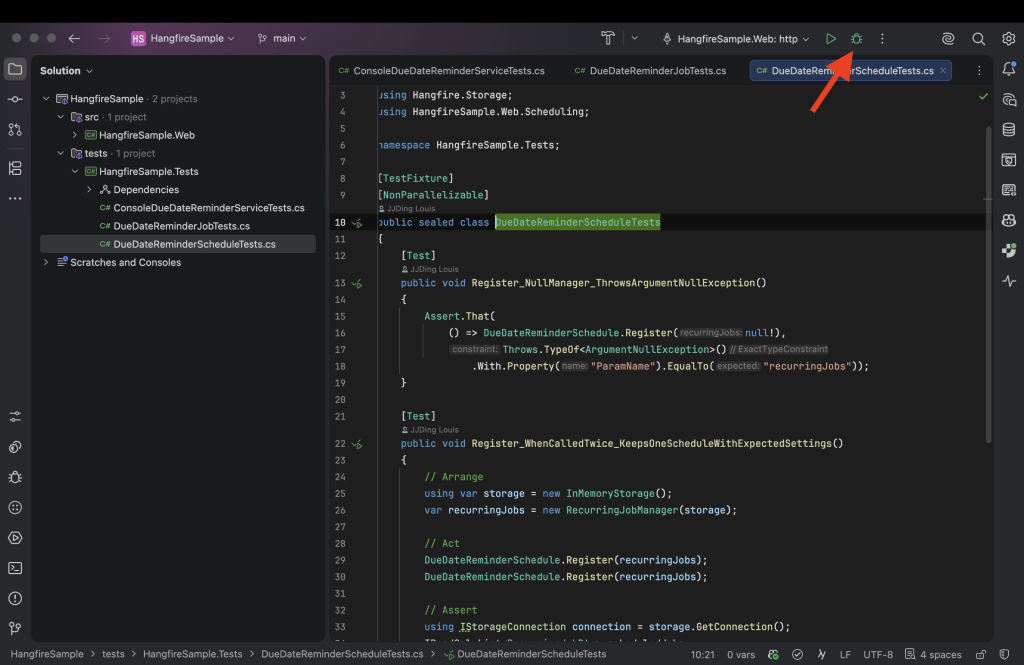
也可以使用 IDE 開啟專案。本文以 JetBrains Rider 為例,將執行模式切換為 Debug:
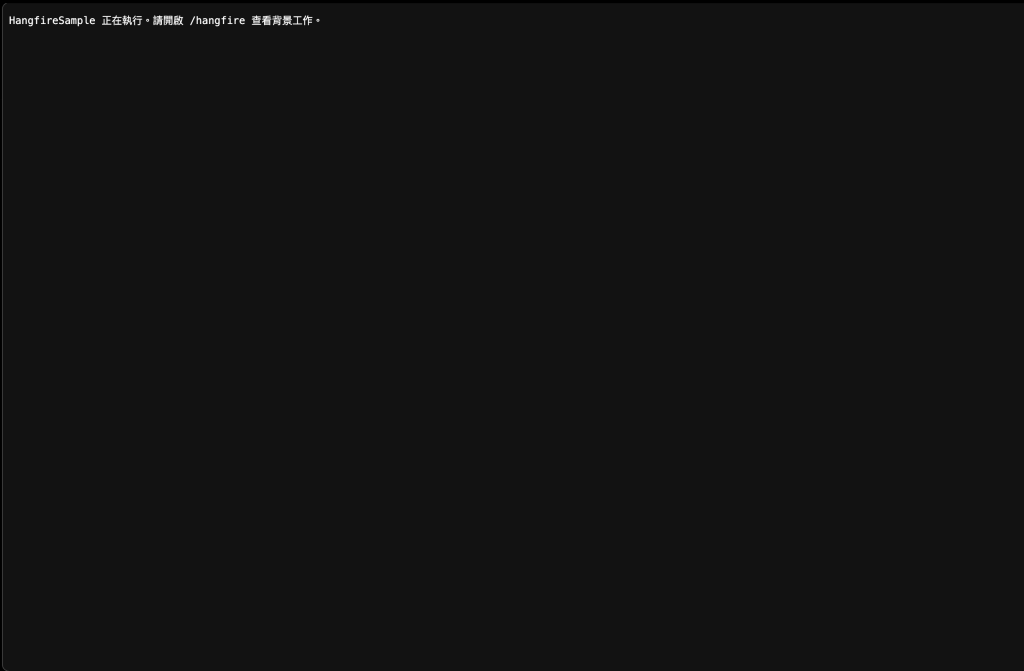
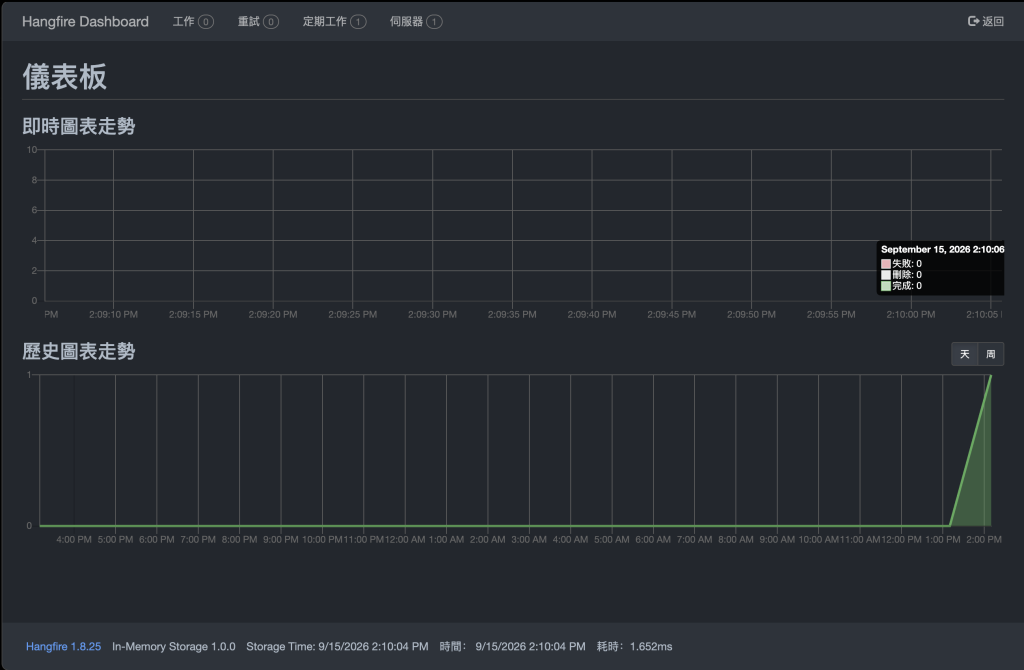
專案啟動後,打開瀏覽器確認首頁與 Hangfire Dashboard:
專案使用的主要套件如下:
| 套件 | 版本 | 用途 |
|---|---|---|
| Hangfire.AspNetCore | 1.8.25 | 把 Hangfire 接進 ASP.NET Core |
| Hangfire.InMemory | 1.0.0 | 將示範工作的資料暫存在記憶體 |
| Newtonsoft.Json | 13.0.4 | 明確使用已修正已知弱點的相依版本 |
這次先用 Hangfire.InMemory,讀者不必先準備 SQL Server,就能看到完整流程。代價也很直接:程式一關,工作紀錄就會消失。它適合教學與本機實驗,不適合保存正式環境的排程紀錄。
排程只負責決定「何時執行」,到期提醒的業務規則還是放在 Service。先用介面定義兩者的合作方式:
Services/IDueDateReminderService.cs
namespace HangfireSample.Web.Services;

public interface IDueDateReminderService
{
    Task SendDueSoonRemindersAsync(CancellationToken cancellationToken);
}
接著建立 Hangfire 真正會呼叫的 Job:
Jobs/DueDateReminderJob.cs
using HangfireSample.Web.Services;

namespace HangfireSample.Web.Jobs;

public sealed class DueDateReminderJob
{
    private readonly IDueDateReminderService _reminderService;
    private readonly ILogger<DueDateReminderJob> _logger;

    public DueDateReminderJob(
        IDueDateReminderService reminderService,
        ILogger<DueDateReminderJob> logger)
    {
        ArgumentNullException.ThrowIfNull(reminderService);
        ArgumentNullException.ThrowIfNull(logger);

        _reminderService = reminderService;
        _logger = logger;
    }

    public async Task ExecuteAsync(CancellationToken cancellationToken)
    {
        _logger.LogInformation(
            "開始檢查即將到期的工作項目,時間:{Time}",
            DateTimeOffset.Now);

        await _reminderService.SendDueSoonRemindersAsync(cancellationToken);
    }
}
DueDateReminderJob 很薄。它留下開始執行的 Log,再把工作交給 IDueDateReminderService。正式專案可以注入 Day15 那種真正的提醒服務;範例則注入 ConsoleDueDateReminderService,只寫 Log,不連資料庫,也不會真的寄 Email。
這裡沒有用 try-catch 把例外吃掉。提醒服務若失敗,Hangfire 必須收到例外,才知道這次工作沒有成功,並依設定安排重試。
排程設定獨立放在 DueDateReminderSchedule.cs:
using Hangfire;
using Hangfire.Common;
using HangfireSample.Web.Jobs;

namespace HangfireSample.Web.Scheduling;

public static class DueDateReminderSchedule
{
    public const string JobId = "task-due-date-reminder";
    public const string CronExpression = "0 1 * * *";

    public static TimeZoneInfo TimeZone { get; } =
        TimeZoneInfo.FindSystemTimeZoneById("Asia/Taipei");

    public static void Register(IRecurringJobManager recurringJobs)
    {
        ArgumentNullException.ThrowIfNull(recurringJobs);

        recurringJobs.AddOrUpdate(
            JobId,
            Job.FromExpression<DueDateReminderJob>(job =>
                job.ExecuteAsync(CancellationToken.None)),
            CronExpression,
            new RecurringJobOptions
            {
                TimeZone = TimeZone
            });
    }
}
0 1 * * * 是 Cron Expression,可以讀成「每天 01:00」。Cron 本身沒有台灣時間的概念,所以另外指定 Asia/Taipei。如果省略時區,伺服器常會依 UTC 解讀,原本想排凌晨一點,最後可能早上九點才執行。
task-due-date-reminder 是這份週期工作的固定 ID。AddOrUpdate 找不到 ID 時會新增,找到相同 ID 時則更新原有排程。應用程式每次啟動都會跑註冊程式,但 Dashboard 不會因此每天多長出一份相同工作。
Program.cs 負責組裝物件、啟動 Hangfire Server,最後註冊排程:
using Hangfire;
using Hangfire.InMemory;
using HangfireSample.Web.Jobs;
using HangfireSample.Web.Scheduling;
using HangfireSample.Web.Services;

var builder = WebApplication.CreateBuilder(args);

builder.Services.AddScoped<IDueDateReminderService, ConsoleDueDateReminderService>();
builder.Services.AddScoped<DueDateReminderJob>();
builder.Services.AddHangfire(configuration => configuration
    .SetDataCompatibilityLevel(CompatibilityLevel.Version_180)
    .UseSimpleAssemblyNameTypeSerializer()
    .UseRecommendedSerializerSettings()
    .UseInMemoryStorage());
builder.Services.AddHangfireServer();

var app = builder.Build();

app.UseHangfireDashboard("/hangfire");

DueDateReminderSchedule.Register(
    app.Services.GetRequiredService<IRecurringJobManager>());

if (app.Environment.IsDevelopment() &&
    builder.Configuration.GetValue<bool>("Hangfire:RunDemoJobOnStartup"))
{
    app.Services
        .GetRequiredService<IBackgroundJobClient>()
        .Enqueue<DueDateReminderJob>(job =>
            job.ExecuteAsync(CancellationToken.None));
}

app.Run();
AddHangfire 準備儲存方式與 Hangfire 需要的服務;AddHangfireServer 才會啟動真正處理佇列的背景伺服器。少了後者,就像工作單已經放上桌,卻沒有值班人員來拿。
最後那段 Enqueue 只在 Development 環境使用。appsettings.Development.json 將 Hangfire:RunDemoJobOnStartup 設為 true,每次啟動都會立即排入一份示範工作,方便確認整條路真的走得通。正式環境不需要這段示範觸發。
以下結果來自在 macOS 使用 .NET SDK 10.0.201 的實際操作。首頁與 Dashboard 都回傳 200 OK,終端機也出現: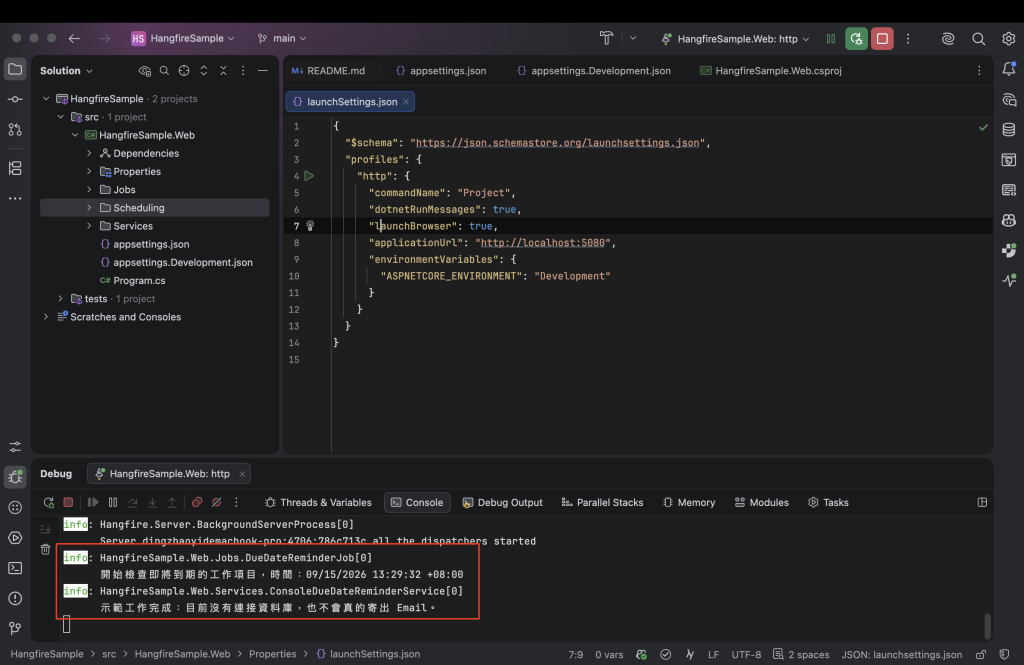
開始檢查即將到期的工作項目,時間:09/15/2026 02:24:27 +08:00
示範工作完成:目前沒有連接資料庫,也不會真的寄出 Email。
Dashboard 的 Recurring Jobs 頁面則顯示:
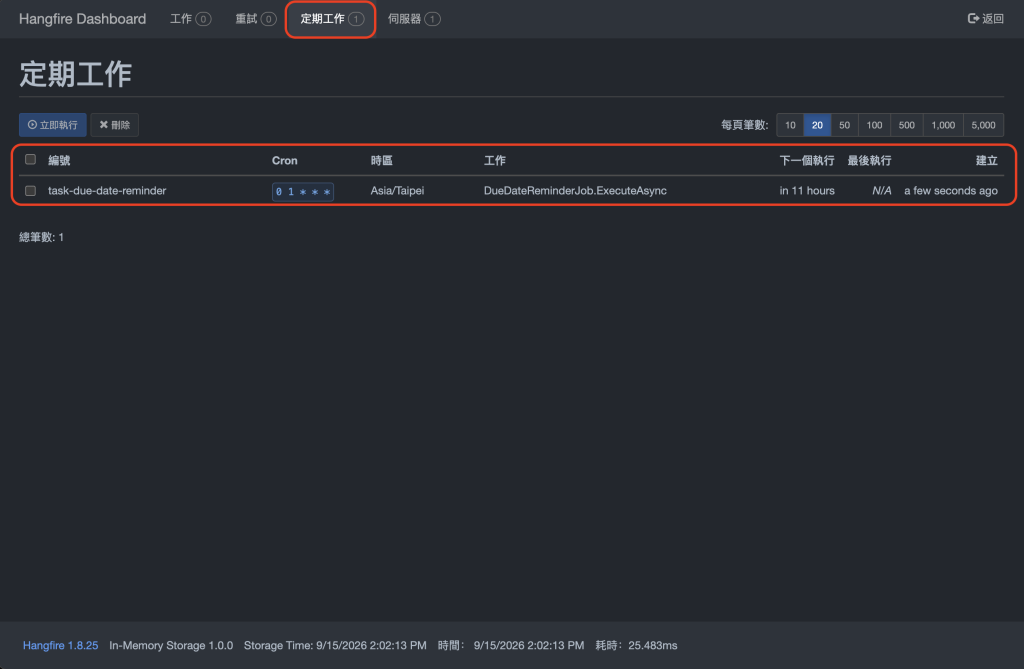
Id: task-due-date-reminder
Cron: 0 1 * * *
Time zone: Asia/Taipei
這次實測證明的是 Hangfire Server 能啟動、立即工作會執行,而且週期排程已用預期的 ID、Cron 與時區註冊。它沒有證明 Email 真的送達,因為範例刻意沒有連接 SMTP;那要交給整合測試或測試環境驗證。
排程最怕「看起來有設定」。範例用三個主要行為測試守住下面這些事情:
CancellationToken 傳下去。下面是第三個測試的核心:
[Test]
public void Register_WhenCalledTwice_KeepsOneScheduleWithExpectedSettings()
{
    using var storage = new InMemoryStorage();
    var recurringJobs = new RecurringJobManager(storage);

    DueDateReminderSchedule.Register(recurringJobs);
    DueDateReminderSchedule.Register(recurringJobs);

    using IStorageConnection connection = storage.GetConnection();
    IReadOnlyList<RecurringJobDto> scheduledJobs =
        connection.GetRecurringJobs();

    Assert.That(scheduledJobs, Has.Count.EqualTo(1));

    RecurringJobDto scheduledJob = scheduledJobs.Single();
    Assert.Multiple(() =>
    {
        Assert.That(scheduledJob.Id, Is.EqualTo("task-due-date-reminder"));
        Assert.That(scheduledJob.Cron, Is.EqualTo("0 1 * * *"));
        Assert.That(scheduledJob.TimeZoneId, Is.EqualTo("Asia/Taipei"));
    });
}
完整測試可以直接在 Rider 的 Unit Tests 視窗執行:
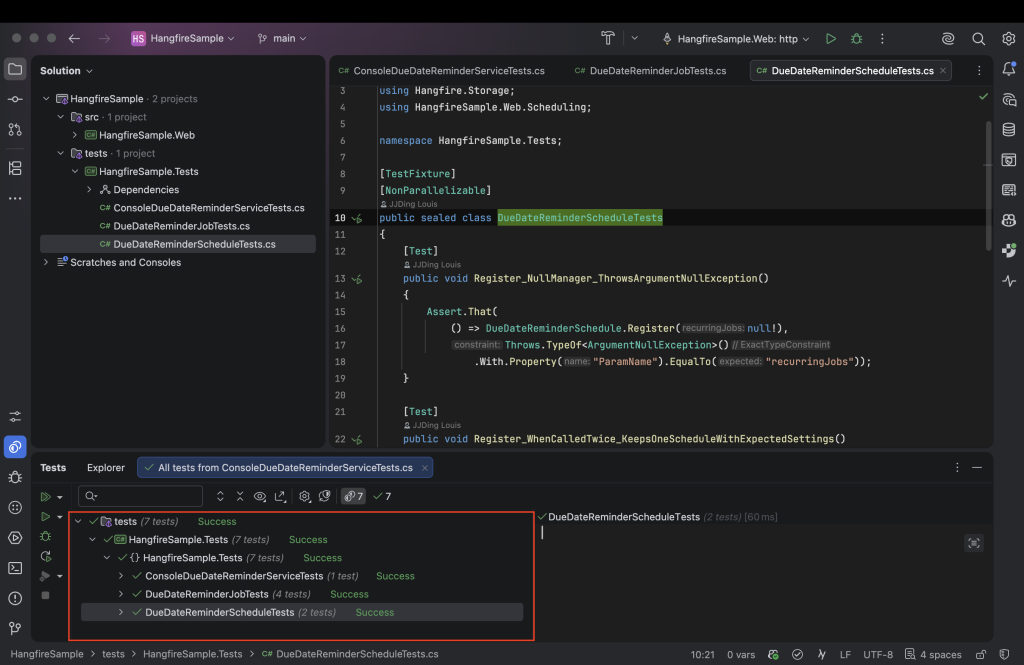
也可以進入 HangfireSample 專案根目錄,開啟終端機執行:
dotnet test HangfireSample.slnx --configuration Release
另外四個測試會檢查建構子、排程註冊與取消權杖的防呆。實際結果為:
已通過! - 失敗: 0,通過: 7,略過: 0,總計: 7
Release 非增量建置也通過,結果是 0 個警告、0 個錯誤。
教學範例能執行,不代表可以原封不動搬去上線。ProjectManagementWeb 至少還要處理下面幾件事:
可以把 Hangfire 想成準時又盡責的值班人員,但它不懂業務。它只知道時間到了就執行,失敗了便重試;「這封信是否已經寄過」與「這位使用者現在還能不能收信」,仍要由程式判斷。
排程開始運作後,下一個麻煩也跟著來了:工作半夜失敗時,隔天要怎麼知道它停在哪一步?Day17 會接著談 Log,替背景工作留下能回頭追查的線索。



 iThome鐵人賽
 看影片追技術