

昨天 Day 20 終於把 Structured Output 正式接進 Gemini API。
原本 Gemini 回傳的是一大段文字,現在則可以固定拿到:
{
  "cards": [
    {
      "emoji": "🐢",
      "title": "認識海龜",
      "content": "海龜住在大海裡。",
      "question": "海龜住在哪裡?",
      "answer": "大海裡。"
    }
  ]
}
到這裡,Gemini 已經可以回傳程式比較容易處理的 JSON。
但其實還差最後一步。
因為目前畫面上的 Learning Card,仍然使用 App 原本的資料。
也就是:
Gemini
↓
Structured JSON
↓
React Client

到這裡就停了
所以今天要繼續把這條資料流接完:
Gemini Structured JSON
↓
response.cards
↓
LearningCard[]
↓
React State
↓
Learning Card UI
簡單來說:
Day 20 解決的是「讓 Gemini 回傳程式看得懂的資料」,Day 21 解決的則是「讓 React 真正使用這份資料」。
昨天 Structured Output 定義的 Card 是:
{
  emoji: string;
  title: string;
  content: string;
  question: string;
  answer: string;
}
但目前 App 使用的 LearningCard 是:
export interface LearningCard {
  id: string;
  emoji: string;
  title: string;
  pinyin?: string;
  content: string;
  question: string;
  answer: string;
  parentTip?: string;
  soundName?: string;
}
仔細比較就會發現,兩邊的 Data Contract 並不完全相同。
Gemini 沒有:
id: string;
而 App 卻要求每張 LearningCard 一定要有 id。
至於:
pinyin?: string;
parentTip?: string;
soundName?: string;
因為本來就是 optional,所以沒有倒還沒關係。
真正需要處理的是 id。
這其實就是 Day 16 曾經遇過的問題。
當時我把 Day 12 的 Structured Output 手動放進 React,TypeScript 馬上提醒:
Property 'id' is missing...
那時候我是直接手動幫五張海洋動物卡片補上 id。
但現在資料是 Gemini 動態產生的,不可能每次 API 回來之後,再自己手動補一次。
所以今天要正式把這個轉換做進程式。
最直接的方法似乎是修改 Day 20 的 Schema:
{
  "id": "card-1",
  "emoji": "🐢",
  "title": "認識海龜",
  "content": "...",
  "question": "...",
  "answer": "..."
}
但我這次刻意沒有這樣做。
因為 id 並不是教材內容。
Gemini 真正需要負責的是:
Emoji
Title
Content
Question
Answer
而:
id
是 App 自己管理資料時需要的 internal data。
所以我希望維持:
Gemini
→ 負責教材內容

Structured Output Schema
→ 定義 AI Response

Frontend
→ 補上 App 自己需要的資料

React State
→ 管理目前 UI 使用的資料
換句話說:
AI Output Model 不一定要和 Frontend View Model 長得完全一樣。
中間可以有一層 Data Transformation。
這次仍然使用 Gemini 3.8 Flash 協助修改目前的 App。
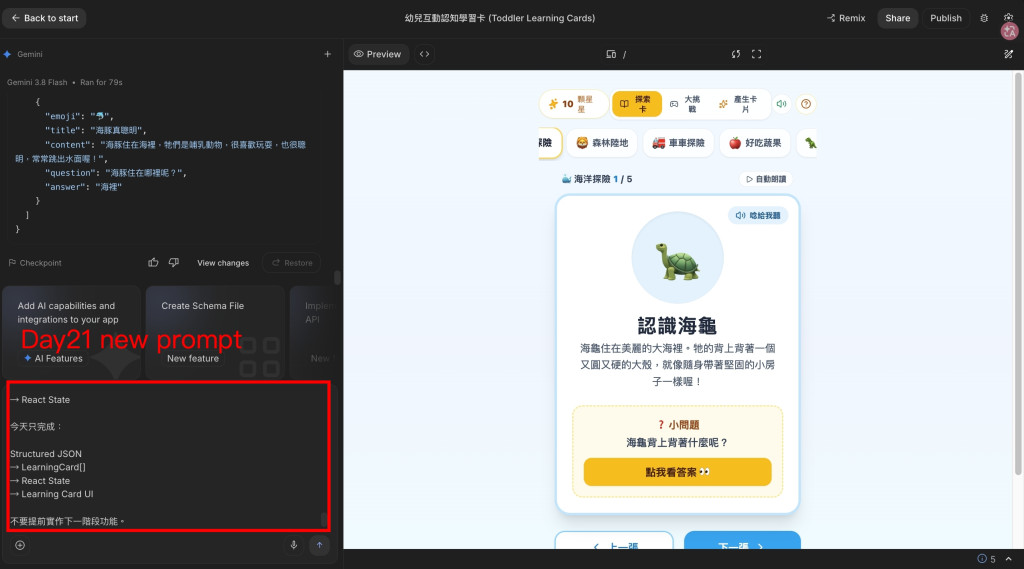
我希望它只完成:
Structured JSON
→ LearningCard[]
→ React State
→ Learning Card UI
所以 Prompt 也把不要提前做的功能寫清楚:
目前這個 Learning Card App 已經完成:

Form Data
→ buildLearningCardPrompt()
→ Prompt Template
→ POST /api/generate-cards
→ server.ts
→ Gemini API
→ Structured Output
→ Structured JSON Response
→ React Client

目前 Gemini Structured Output 的 Response 格式為:

{
  "cards": [
    {
      "emoji": "🐢",
      "title": "認識海龜",
      "content": "海龜住在大海裡。",
      "question": "海龜住在哪裡?",
      "answer": "大海裡。"
    }
  ]
}

目前 App 使用的 LearningCard type 為:

interface LearningCard {
  id: string;
  emoji: string;
  title: string;
  pinyin?: string;
  content: string;
  question: string;
  answer: string;
  parentTip?: string;
  soundName?: string;
}

現在請幫我把 Gemini Structured JSON Response
真正轉換成 App 可以使用的 LearningCard[],
並讓目前的 Learning Card UI 顯示 Gemini 新產生的卡片。

需求:

1. 取得 API Response 中的 cards。

2. 將 Gemini 回傳的每一張 Card 轉成 LearningCard。

3. Gemini Response 沒有 id,
   請由 Frontend 在轉換資料時自動加入 id。

4. id 屬於 App internal data,
   不要修改 Gemini Structured Output Schema 要求 AI 產生 id。

5. pinyin、parentTip、soundName 都是 optional,
   Gemini 沒有回傳時不需要補假資料。

6. 將轉換後的 LearningCard[] 存入 React State。

7. Learning Card UI 改為顯示目前 State 中的 cards,
   讓使用者按下「產生學習卡」並成功取得 Gemini Response 後,
   畫面可以顯示剛剛 AI 產生的新卡片。

8. 產生新卡片後,如果目前卡片有 index / progress,
   請重設到第一張,避免 index 超出新陣列範圍。

9. 請保留目前:
   - buildLearningCardPrompt()
   - Prompt Template
   - Gemini Structured Output Schema
   - POST /api/generate-cards
   - Server-side GEMINI_API_KEY
   - CardGeneratorForm
   - LearningCard type
   - 既有 Learning Card UI 與主要互動功能

這次先不要:

- 修改 Gemini Prompt Template
- 修改 Structured Output Schema
- 要求 Gemini 產生 id
- 新增 Loading / Error 完整狀態處理
- 新增 Regenerate 功能
- 新增 Learning Card 編輯功能
- 新增 Firebase
- 新增資料儲存
- 新增其他 AI 功能
- 修改教材內容規則

請在適合的位置加入 Console Log,
讓我可以確認:

Gemini Structured Response
→ response.cards
→ LearningCard[]
→ React State

今天只完成:

Structured JSON
→ LearningCard[]
→ React State
→ Learning Card UI

不要提前實作下一階段功能。
這幾天開始習慣除了告訴 Gemini「今天要做什麼」,也把「今天不要做什麼」一起寫進 Prompt。
不然 AI 很容易在完成需求的同時,又順便幫我把下一篇也做完。
這次執行結果:
Gemini 3.8 Flash
Ran for 116s

Edited 2 files

src/components/CardGeneratorForm.tsx
src/LearningCardApp.tsx

Built
只有修改兩個 Client-side 檔案。
沒有去動:
server.ts
learningCardSchema.ts
learningCardPrompt.ts
types.ts
這點很符合今天設定的範圍。
因為 Day 20 的 Gemini API、Prompt Template 和 Structured Output Schema 都已經可以正常運作。
今天真正要處理的是:
React Client 收到 JSON 之後怎麼辦?
在 CardGeneratorForm.tsx 裡,先取得 Structured Response:
const structuredResponse =
  data.data ?? (typeof data.response === 'string' ? JSON.parse(data.response) : null);

console.log('Gemini Structured Response:', structuredResponse);
接著取出 cards:
const rawCards = structuredResponse?.cards || [];

console.log('response.cards:', rawCards);
所以現在 Client 端的資料會先經過:
API Response
↓
Structured Response
↓
response.cards
↓
rawCards
這時候的 rawCards 還是 Gemini 原本產生的資料。
也就是:
{
  "emoji": "🦕",
  "title": "三角龍的盾牌!",
  "content": "...",
  "question": "...",
  "answer": "..."
}
仍然沒有 id。
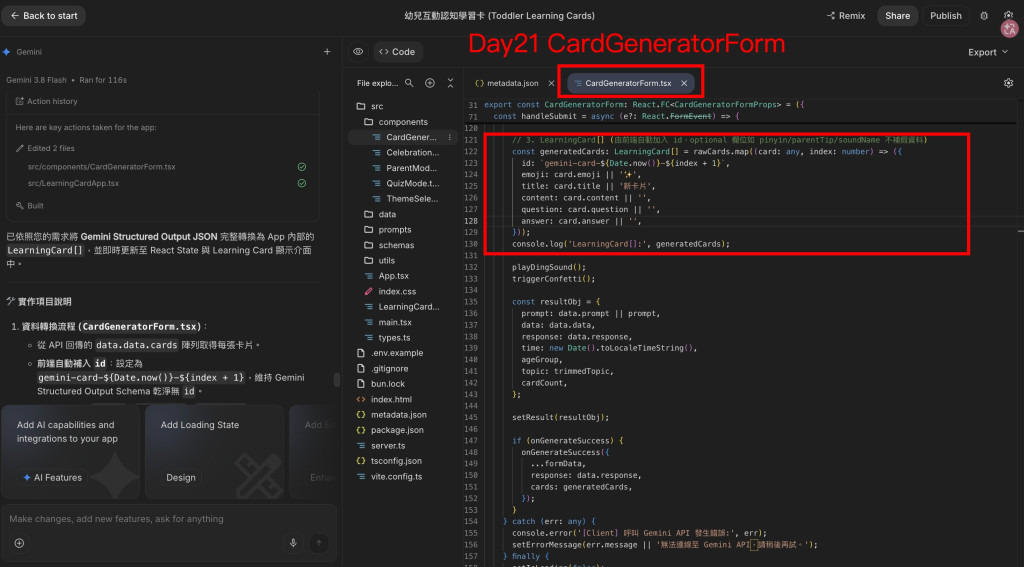
接下來就是今天最重要的一段:
const generatedCards: LearningCard[] = rawCards.map(
  (card: any, index: number) => ({
    id: `gemini-card-${Date.now()}-${index + 1}`,
    emoji: card.emoji || '✨',
    title: card.title || '新卡片',
    content: card.content || '',
    question: card.question || '',
    answer: card.answer || '',
  })
);

console.log('LearningCard[]:', generatedCards);
原本:
{
  "emoji": "🦕",
  "title": "三角龍的盾牌!",
  "content": "...",
  "question": "...",
  "answer": "..."
}
經過 map() 之後:
{
  "id": "gemini-card-1791192673299-1",
  "emoji": "🦕",
  "title": "三角龍的盾牌!",
  "content": "...",
  "question": "...",
  "answer": "..."
}
Frontend 自己補上了:
id
而 pinyin、parentTip、soundName 因為本來就是 optional,所以 Gemini 沒有回傳時,也沒有刻意補假資料。
這樣 generatedCards 就可以成為 App 使用的:
LearningCard[]
看 Code 時我也注意到,雖然 optional 欄位沒有補資料,但 required 欄位仍然有一些 fallback:
emoji: card.emoji || '✨',
title: card.title || '新卡片',
content: card.content || '',
question: card.question || '',
answer: card.answer || '',
不過 Day 20 已經透過 Structured Output Schema 要求這五個欄位都是 required。
所以正常情況下 Gemini 本來就應該提供:
emoji
title
content
question
answer
這裡比較像 Client 又多留了一層防守。
CardGeneratorForm 完成資料轉換後,會透過:
onGenerateSuccess({
  ...formData,
  response: data.response,
  cards: generatedCards,
});
把資料交給 LearningCardApp。
所以 Component 之間的資料流變成:
CardGeneratorForm
↓
Gemini API
↓
Structured Response
↓
rawCards.map()
↓
LearningCard[]
↓
onGenerateSuccess()
↓
LearningCardApp
接下來就輪到 React State。
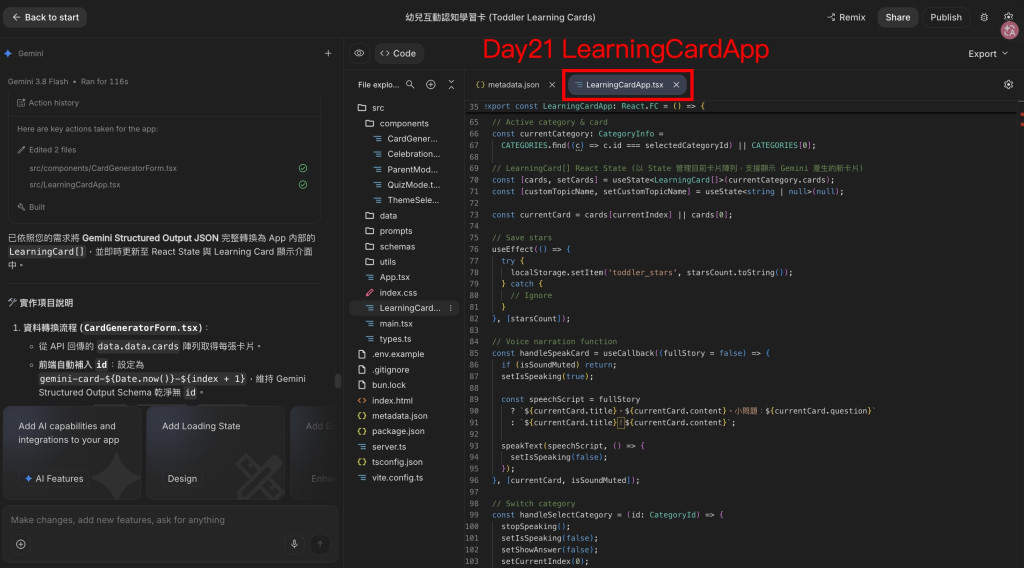
LearningCardApp.tsx 現在使用:
const [cards, setCards] =
  useState<LearningCard[]>(currentCategory.cards);

const [customTopicName, setCustomTopicName] =
  useState<string | null>(null);

const currentCard = cards[currentIndex] || cards[0];
第一次開啟 App 時:
currentCategory.cards
↓
cards State
所以還是可以顯示原本的海洋動物卡片。
但當 Gemini 產生新的 Learning Cards 後:
Gemini Response
↓
LearningCard[]
↓
setCards()
↓
React Re-render
畫面就可以直接換成 AI 剛剛產生的教材。
這也是今天最重要的變化。
Gemini 這次實際產生的成功處理:
const handleGenerateSuccess = (data: {
  ageGroup: string;
  topic: string;
  cardCount: number;
  response?: string;
  cards?: LearningCard[];
}) => {
  if (data.cards && data.cards.length > 0) {
    setCards(data.cards);
    console.log('React State:', data.cards);

    setCurrentIndex(0);
    setShowAnswer(false);
    stopSpeaking();
    setIsSpeaking(false);
    setCustomTopicName(data.topic);

    setAppMode('card');
  }
};
原本我以為今天大概只需要:
setCards(data.cards);
但實際接進 UI 後,才發現還有其他 State 要一起同步。
例如:
setCurrentIndex(0);
如果原本有 7 張卡片,而且使用者正在第 7 張:
currentIndex = 6
結果 Gemini 新產生的只有 3 張:
cards.length = 3
如果 index 沒有 Reset:
cards[6]
就不存在了。
所以新的 AI Data 進入 App 時,不只是「換資料」。
還要處理:
目前第幾張
答案是否展開
語音是否正在播放
目前顯示模式
目前主題
這也是今天實作後才更明顯感受到的地方:
把 AI Response 接進 UI,不只是 API 串接問題,也是 State Management 問題。
程式修改完成後,我先測:
學習對象:5~6 歲幼兒
學習主題:森林恐龍
卡片數量:3
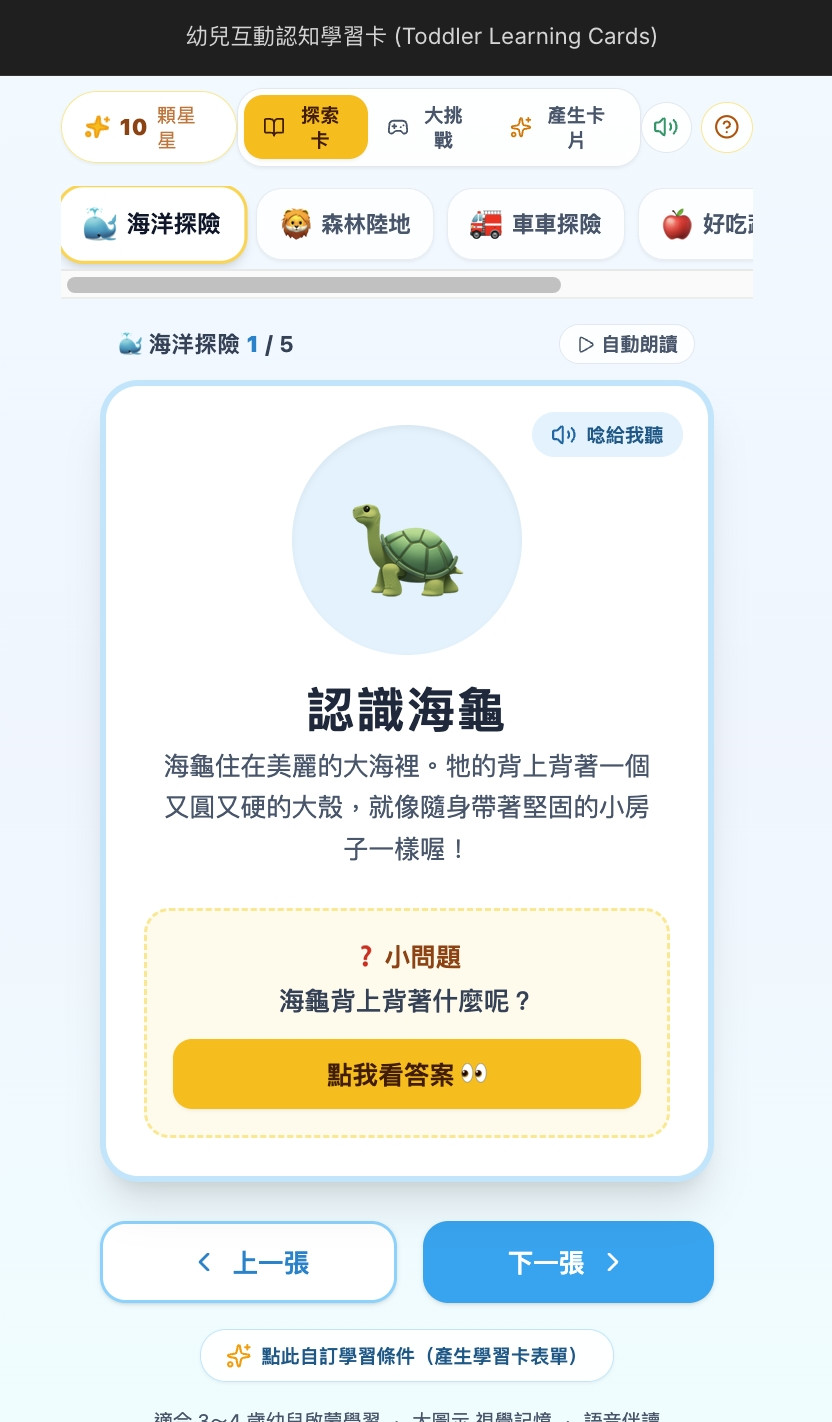
產生前,App 還是原本的:
🐋 海洋探險 1 / 5

🐢
認識海龜
這些就是前面接進 App 的海洋動物資料。
按下產生後,Gemini 回傳:
{
  "cards": [
    {
      "emoji": "🦕",
      "title": "三角龍的盾牌!",
      "content": "三角龍是一種住在森林裡的恐龍。牠的頭上有三個尖尖的角,還有一個大大硬硬的盾牌。這些都可以保護牠不被其他恐龍欺負喔!三角龍很喜歡吃森林裡的植物。",
      "question": "三角龍頭上有什麼可以保護自己呢?",
      "answer": "尖尖的角和硬硬的盾牌。"
    },
    {
      "emoji": "🌳",
      "title": "高高的腕龍!",
      "content": "在森林裡住著一種脖子長長的恐龍,牠叫做腕龍。腕龍的脖子超級長,可以輕鬆吃到高高樹上的葉子。牠很高很高,比房子還要高喔!腕龍也是個愛吃植物的大個子。",
      "question": "腕龍的脖子為什麼長長的呢?",
      "answer": "可以吃到高高樹上的葉子。"
    },
    {
      "emoji": "🌿",
      "title": "恐龍吃什麼?",
      "content": "森林裡有很多種恐龍,有些恐龍喜歡吃綠綠的植物,像是樹葉和草,我們叫牠們「草食恐龍」。有些恐龍則喜歡吃肉,牠們是「肉食恐龍」。",
      "question": "喜歡吃綠綠植物的恐龍叫做什麼?",
      "answer": "草食恐龍。"
    }
  ]
}
這次 Console 很適合拿來追蹤資料到底經過了哪些階段。
首先:
Gemini Structured Response
接著:
response.cards
這時還是沒有 id 的 Gemini Data。
到了:
LearningCard[]
三張卡片已經分別變成:
gemini-card-1791192673299-1
gemini-card-1791192673299-2
gemini-card-1791192673299-3
最後:
React State
也出現同樣的三筆 LearningCard。
完整流程真的變成:
Gemini Structured Response
↓
response.cards
↓
LearningCard[]
↓
React State
產生完成後,原本:
🐋 海洋探險 1 / 5
🐢 認識海龜
變成:
✨ 森林恐龍 1 / 3
🦕 三角龍的盾牌!
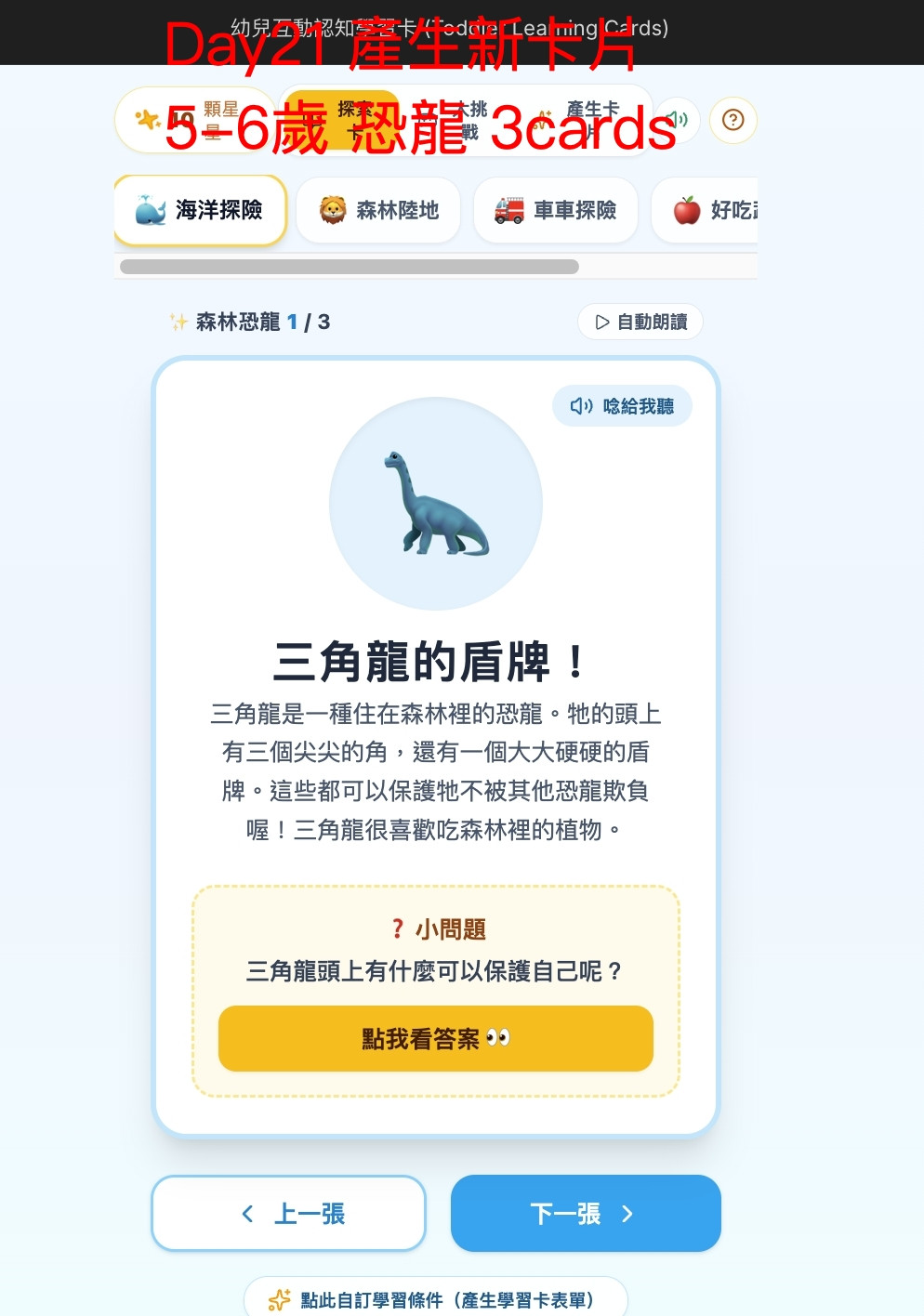
這次不是把 Gemini Response 印在下方 Preview 而已。
新的 AI Data 已經真的成為 Learning Card UI 的資料來源。
我也繼續測:
1 / 3
↓
2 / 3
↓
3 / 3
三張卡片都可以正常切換。
「點我看答案」也能正常展開。
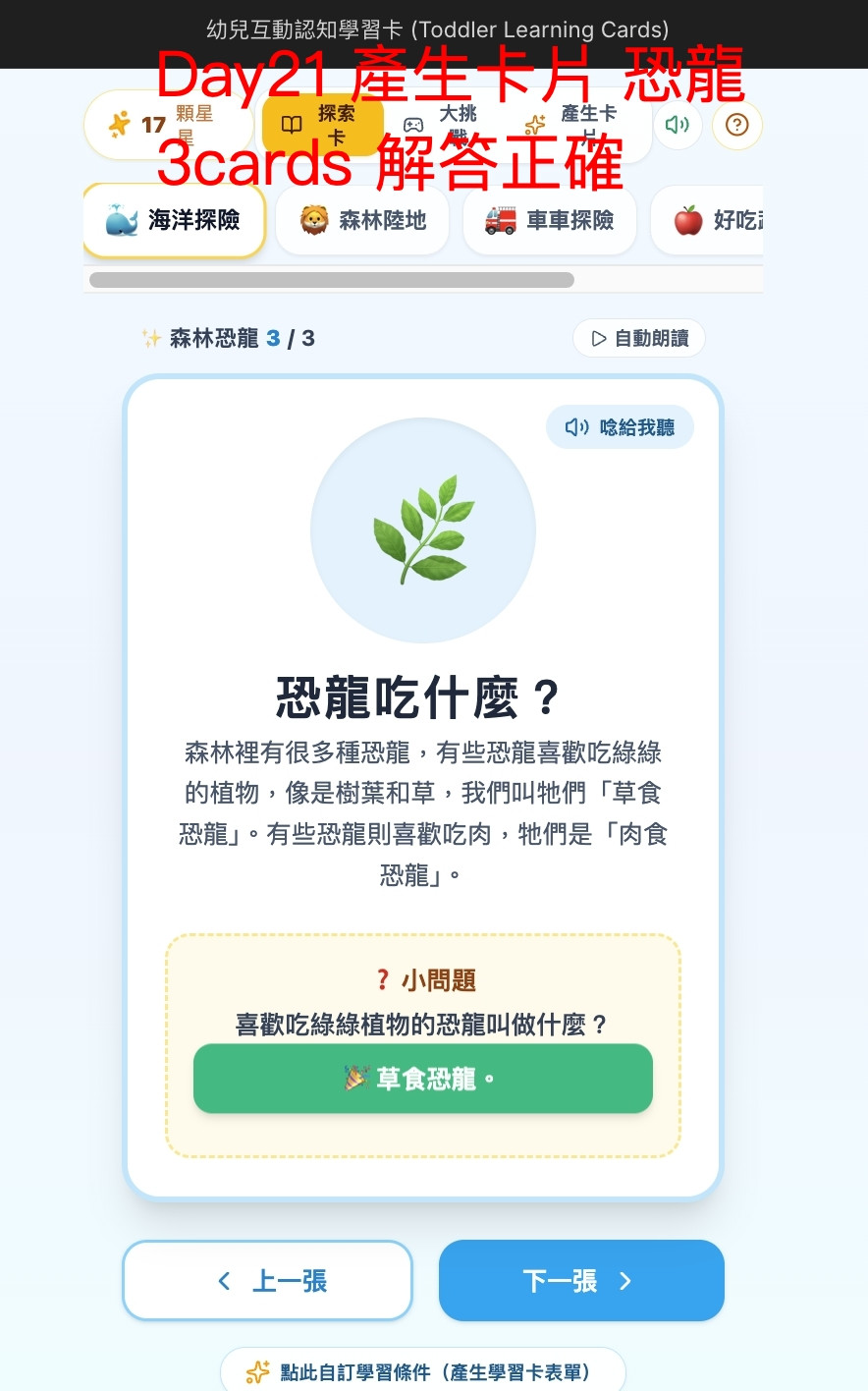
代表既有的 Learning Card UI 並沒有因為資料來源從 Static Data 換成 AI Generated Data 就失效。
第一次測試確認 AI Data 可以進 UI 後,我又做了第二個測試。
這次先故意把恐龍卡切到:
恐龍世界 3 / 3
也就是:
currentIndex = 2
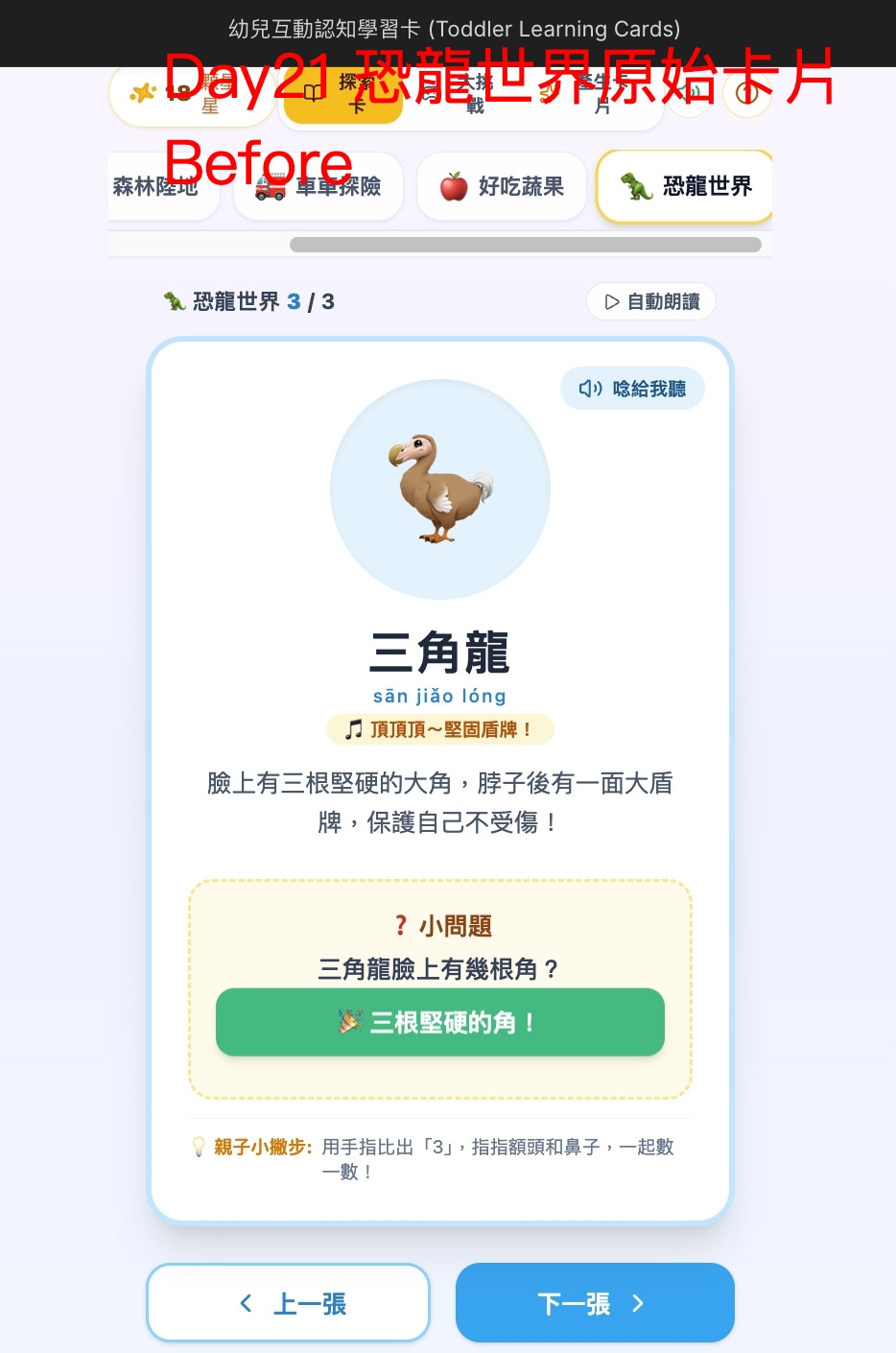
接著重新產生:
學習對象:7~8 歲兒童
學習主題:浩瀚太空
卡片數量:5
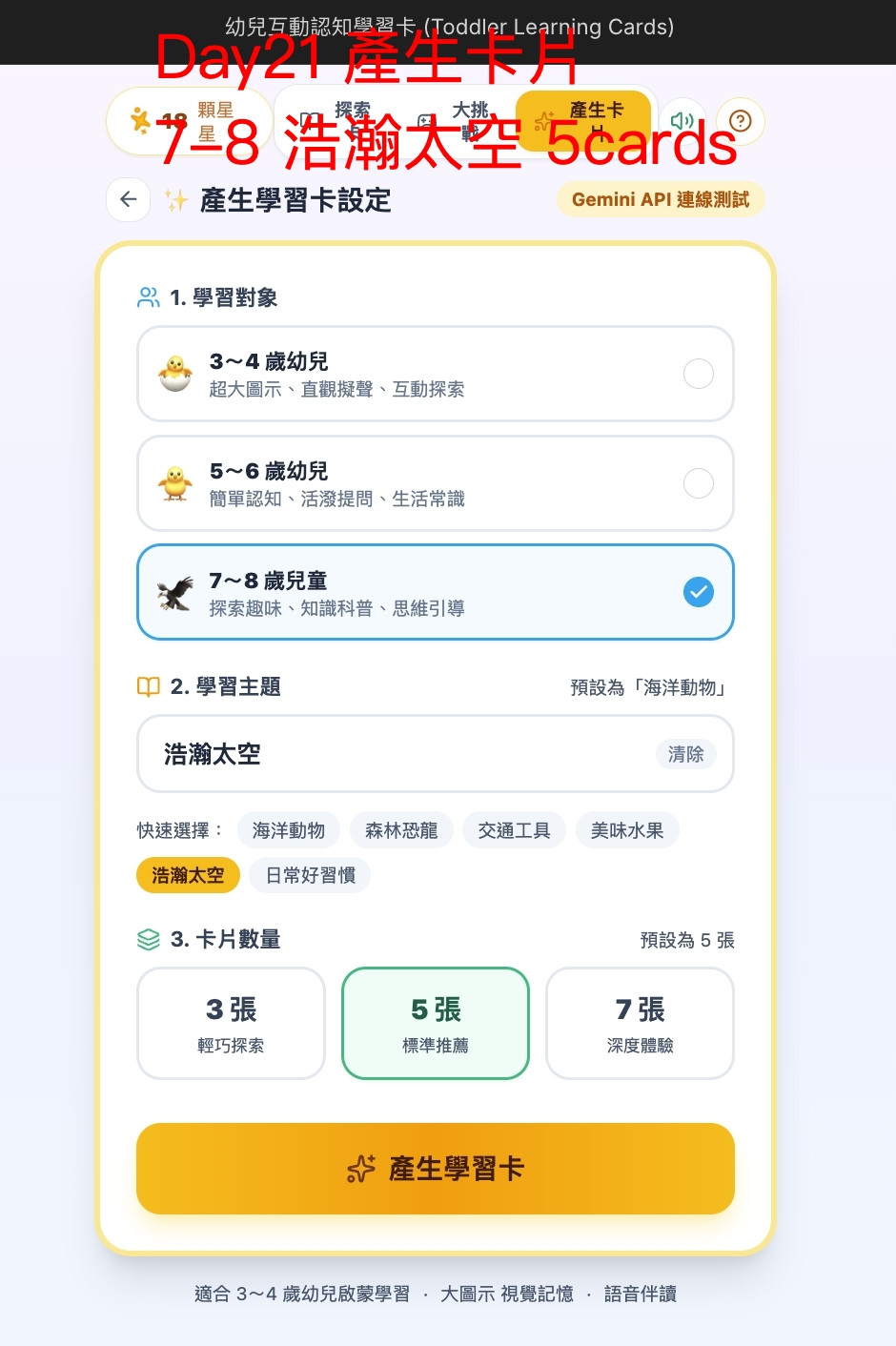
這次 Gemini 回傳五張:
☀️ 閃亮的太陽
🌕 神秘的月亮
🌍 我們住的地球
✨ 閃爍的星星
🚀 飛向太空的火箭
第一張:
{
  "emoji": "☀️",
  "title": "閃亮的太陽",
  "content": "太陽是個超大的火球,它住在宇宙中,給地球光和熱,讓我們能看到東西和感覺溫暖。",
  "question": "太陽給地球什麼?",
  "answer": "光和熱。"
}
經過 Frontend Transform 後:
{
  "id": "gemini-card-1791193595532-1",
  "emoji": "☀️",
  "title": "閃亮的太陽",
  "content": "太陽是個超大的火球,它住在宇宙中,給地球光和熱,讓我們能看到東西和感覺溫暖。",
  "question": "太陽給地球什麼?",
  "answer": "光和熱。"
}
五張都成功加入 id,最後也全部進入 React State。
這其實是 Test B 最主要想驗證的事情。
產生前:
恐龍世界 3 / 3
產生後:
✨ 浩瀚太空 1 / 5
成功。
也就是:
Before

cards.length = 3
currentIndex = 2

        ↓

Gemini 重新產生

        ↓

After

cards.length = 5
currentIndex = 0
這證明:
setCards(data.cards);
setCurrentIndex(0);
都有正常工作。
如果今天只測「原本第 1 張 → 新資料第 1 張」,其實不太容易知道 index 到底有沒有被正確 Reset。
刻意停在 3 / 3 再產生另一組資料,反而更容易驗證 State 的行為。
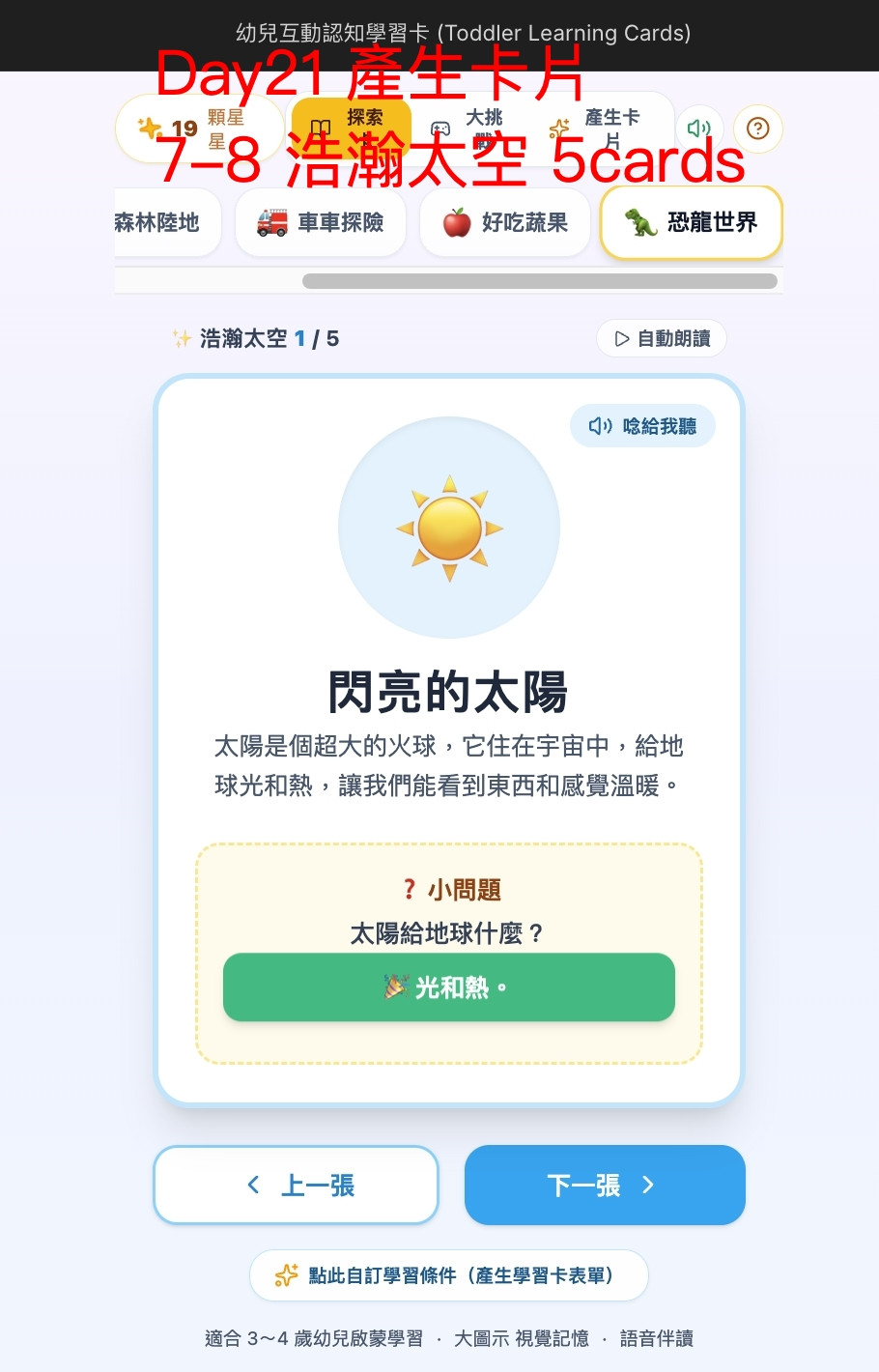
雖然主要內容已經成功變成:
✨ 浩瀚太空 1 / 5
但畫面上方原本的 Category Tab:
🦖 恐龍世界
仍然維持 Selected 狀態。
也就是目前畫面其實同時存在:
上方 Category:
🦖 恐龍世界 ← Selected

目前真正顯示的 AI Topic:
✨ 浩瀚太空

目前 cards:
Gemini 產生的 5 張太空卡
從 State 來看,可以理解成:
selectedCategoryId
→ 還是 dino

customTopicName
→ 浩瀚太空

cards
→ Gemini Space Cards
所以主要內容已經更新了,但既有 Category UI 的選取狀態沒有一起改變。
看到這裡第一個反應當然是:
那就叫 Gemini 順便修掉吧?
不過我決定今天先停。
因為 Day 21 原本設定的範圍是:
Structured JSON
↓
LearningCard[]
↓
React State
↓
Learning Card UI
這條路已經完整跑通。
Category Tab 的 Selected State 是另外一個 UI State Design 問題。
如果現在繼續往下處理,很快又會開始討論:
Preset Category
Generated Topic
Selected Category
Generated Mode
Theme State
今天的主題就會越拉越遠。
所以這個問題先記錄下來,等之後做完整 End-to-End Demo 前再整理。
這幾天用 AI Coding 下來,我開始覺得除了知道要叫 AI 做什麼之外:
知道今天先不要修什麼,也滿重要的。
例如 Test B 的教材內容有:
太陽是個超大的火球
以及:
星星其實是很遠很遠的太陽
而這次指定的學習對象是:
7~8 歲兒童
這些說法雖然簡單、容易理解,但如果真的把它當成兒童教材,就會開始遇到另一個問題:
為了讓小朋友容易理解,AI 簡化到什麼程度才算適合?
Test A 的:
三角龍是一種住在森林裡的恐龍。
同樣值得再確認內容是否足夠精確。
不過這已經不是今天要處理的 Data Flow 問題了。
先把這些案例留下來。
後面會專門回頭檢查:
AI 產生的教材,真的可以直接拿來使用嗎?
回頭看 Day 16,當時其實還是:
手動準備 JSON
↓
補 id
↓
oceanCards
↓
React UI
到了今天,已經變成:
使用者輸入學習條件
↓
Prompt Builder
↓
Gemini API
↓
Structured Output
↓
response.cards
↓
Frontend Transform
↓
補 id
↓
LearningCard[]
↓
React State
↓
Learning Card UI
這對目前這個專案來說,是一個滿重要的節點。
因為前面雖然已經做了 Prompt、Structured Output、React UI 和 Gemini API,但它們多少還是分開的。
直到今天:
使用者輸入需求後,Gemini 產生的教材終於真的成為 App 畫面正在使用的資料。
Learning Card Generator 開始比較像一個真正的 AI App 了。
今天沒有修改 Prompt Template,也沒有修改 Structured Output Schema。
Gemini 仍然只負責產生:
emoji
title
content
question
answer
而 Frontend 負責:
Gemini Card
↓
加入 id
↓
LearningCard[]
接著透過:
LearningCard[]
↓
onGenerateSuccess()
↓
setCards()
↓
React State
↓
UI
把 AI 產生的教材真正顯示出來。
兩次測試也分別驗證:
Test A

海洋探險 1 / 5
↓
森林恐龍 1 / 3

1 / 3 → 2 / 3 → 3 / 3
答案正常
以及:
Test B

森林恐龍 3 / 3
↓
浩瀚太空 1 / 5
第二次測試也證明,當 AI 回傳不同數量的 Cards 時,currentIndex 能跟著 Reset,不會沿用上一批資料的位置。
當然,測試也發現 Category Tab 還存在舊的 Selected State,以及 AI 教材內容是否足夠精確等問題。
但今天先不急著全部解決。
至少現在最重要的這條路已經通了:
Learning Requirement
↓
Gemini
↓
Structured JSON
↓
LearningCard[]
↓
React State
↓
Learning Card UI
從 Day 20 的「AI 有回資料」,走到了今天的:
AI 產生的資料,真的成為產品的一部分。
現在正常流程已經可以:
產生學習卡
↓
等待 Gemini
↓
取得 JSON
↓
顯示 Learning Cards
但之前串 Gemini API 時,我其實已經真的遇過:
503
This model is currently experiencing high demand.
如果 AI 回應需要等待,使用者應該看到什麼?
如果 Gemini API 失敗,畫面又該怎麼處理?
明天就來處理 AI App 不能只考慮 Happy Path 的問題:
idle
↓
loading
↓
success / error
讓目前已經能「產生 AI 學習卡」的 App,再往真正可以使用的狀態前進一步。


 iThome鐵人賽
 看影片追技術