
網購也是這樣一步一步的聚焦操作讓我買一堆?
飲料訂單算是有個簡單的雛形了,現在我們想提供一個「填寫取餐姓名」按鈕按下後,鍵盤輸入的位置直接移到姓名欄位。
瀏覽器會用 DOM 表示網頁結構,輸入框的焦點在畫面上的 <input> 有對應的 DOM 節點,透過 ref 取得這個節點後,就能呼叫瀏覽器提供的 focus()。
current 是 ref 物件裡,用來存放資料的屬性,來看範例:
const countRef = useRef(0);
首先 useRef(0) 會取得一個 ref 物件,初始的 current 是 0,在同一個元件持續掛載期間,重新渲染會取得同一個 ref 物件,具有保留資料的特性。
跟 state 哪裡不同:
ref 在事件函式裡讀取或修改 countRef.current,賦值後就能讀到新值,但修改本身不會要求 React 重新渲染。
如果資料需要持續反映在畫面上,還是使用 state。
來比較一下區域變數、state、ref:
| 方式 | 重新渲染後 | 修改方式 |
|---|---|---|
| 元件函式內的普通區域變數 | 函式重新執行時重新宣告、計算 | 直接賦值,不要求渲染 |
| state | React 保留狀態 | 呼叫 setter,React 安排更新;相同值可能略過 |
| ref | React 保留同一個 ref 物件 | 修改 current,不要求渲染 |
ref 和 state 都不是永久儲存,如果整頁重新載入,或元件移除後重新掛載,都會建立新的資料。
現在我們加入一個 ref 玩看看吧。
將 drink-order.tsx 的 React 匯入替換為:
import {
  createContext,
  useContext,
  useReducer,
  useRef,
  useState,
  type SubmitEvent,
} from "react";
在 export function DrinkOrder() 前新增以下完整元件,與 DrinkOrder 分別宣告在檔案最外層:
// 示意片段
function RefCounterProbe() {
  const countRef = useRef(0);
  const [reportedCount, setReportedCount] = useState(0);

  function handleIncrement() {
    countRef.current += 1;
    console.log("[ref 計數]", countRef.current);
  }

  function handleRead() {
    setReportedCount(countRef.current);
  }

  return (
    <section aria-labelledby="ref-probe-heading">
      <h2 id="ref-probe-heading">ref 計數觀察</h2>
      <p>上次讀取的計數:{reportedCount}</p>
      <button type="button" onClick={handleIncrement}>
        ref 加一(看 Console)
      </button>
      <button type="button" onClick={handleRead}>
        讀取 ref 到畫面
      </button>
    </section>
  );
}
在 DrinkOrder 的 </header> 後加入:
<RefCounterProbe />
上面的 countRef 負責累加,畫面顯示的是 reportedCount state,按「讀取 ref 到畫面」時,才將當下計數交給 setter,這樣能比較「值已經改變」與「要求畫面顯示新值」兩件事。
除了保留資料之外,也能利用 ref 讓 current 保存 DOM 節點的參考。
在 DrinkOrder 的 Hook 區塊、原本 customerName state 旁新增:
const customerNameRef = useRef<HTMLInputElement>(null);
上面 HTMLInputElement 表示這個 ref 要連接輸入框的 DOM 節點,初始為 null,React 將輸入框放進 DOM 後,才會設定 current,當節點移除時,React 會把它設回 null。
找到 id="customer-name" 的 <input>,只在它的屬性中新增 ref={customerNameRef} :
<input
  ref={customerNameRef}
  id="customer-name"
  name="customerName"
  type="text"
  required
  value={customerName}
  onChange={(event) => setCustomerName(event.target.value)}
/>
在 DrinkOrder 裡、handleSelectOrder 前新增事件函式:
function handleFocusCustomerName() {
  if (isLocked) return;
  customerNameRef.current?.focus();
}
?. 是可選串連:current 是 null 時就跳過呼叫,避免操作不存在的節點。
在「取餐資料」的 <h2 id="pickup-heading"> 後面,姓名欄位的 <div> 前新增:
<button type="button" onClick={handleFocusCustomerName}>
  填寫取餐姓名
</button>
按鈕和姓名欄位都在既有的 fieldset disabled={isLocked} 裡,會一起停用,type="button" 會使點擊只處理焦點,焦點變化會由瀏覽器處理,不會觸發表單送出。
React 提交姓名 input 到 DOM
  -> 將節點放入 customerNameRef.current

使用者按「填寫取餐姓名」
  -> 事件讀取 current
  -> 呼叫瀏覽器的 focus()
  -> 鍵盤輸入位置移到姓名欄位
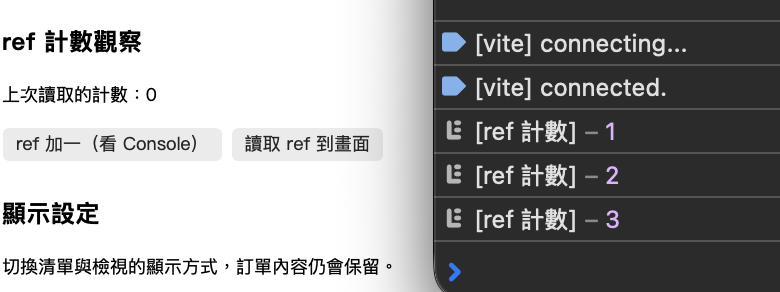
可以看到計數維持 0,但 Console 裡面確實有計數。
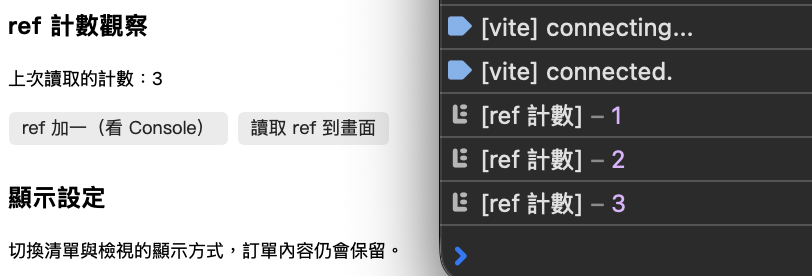
按下讀取 ref 到畫面後,畫面上的計數會更新成 3。
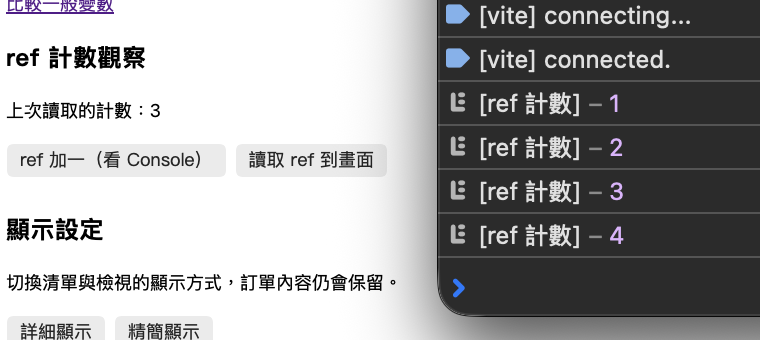
可以明顯的發現兩邊數字不同,但這是因為 ref 的更新不會重新渲染畫面的關係,實際上數字還是有更新。
重點是:ref 改變不會要求畫面更新,而且 state 更新造成重新渲染後,ref 還是可以從 3 繼續加到 4。
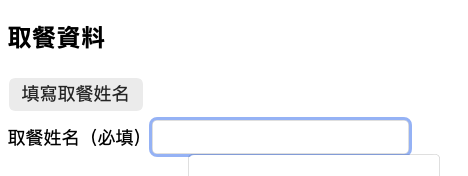
按「填寫取餐姓名」,姓名輸入框會聚焦。
現在如果需求改成:「保留訂單與備註,提供另一個按鈕,清空取餐姓名並讓使用者直接重填。」
首先在 handleFocusCustomerName 後新增:
function handleClearCustomerName() {
  if (isLocked) return;
  setCustomerName("");
  customerNameRef.current?.focus();
}
在「填寫取餐姓名」按鈕後新增:
<button type="button" onClick={handleClearCustomerName}>
  清空姓名並聚焦
</button>
setCustomerName("") 是更新受控欄位的資料,focus() 會操作已經存在的輸入框。注意這裡不用等待 state 更新完成才呼叫 focus(),因為清空文字不會移除或換掉這個節點。
如果操作是「把原本不存在的輸入框顯示出來,再立刻聚焦」,再另外考慮 DOM 的提交時機。
直覺上使用 customerNameRef.current.value = "" 取代 setter 會比較快,但其實直接改 DOM 的值並不會更新 customerName,即時摘要與送出條件可能還是使用舊姓名,會造成資料和畫面不一致。
假如有個情況是忘記連結 ref:
// 錯誤示意
<input
  id="customer-name"
  name="customerName"
  type="text"
  required
  value={customerName}
  onChange={(event) => setCustomerName(event.target.value)}
/>
在編輯狀態按聚焦按鈕,焦點不會移到姓名欄位,?.focus() 也沒有拋出例外。
這是因為 useRef(null) 沒有 JSX 上的 ref 連接,React 不知道這個 ref 要指向哪一個節點,而 ?. 只能避免空值呼叫,並不保證功能。
發生聚焦失敗的話,就記得加一下吧。
今天透過事件操作已經存在的 DOM。明天接著學 Effect,處理隨元件狀態或掛載情況與外部系統同步的工作。
將 React 匯入替換為:
import {
  createContext,
  useContext,
  useReducer,
  useRef,
  useState,
  type SubmitEvent,
} from "react";
Hook 在元件最上層呼叫,不放進事件、條件或迴圈裡。
在 export function DrinkOrder() 前新增以下完整元件:
function RefCounterProbe() {
  const countRef = useRef(0);
  const [reportedCount, setReportedCount] = useState(0);

  function handleIncrement() {
    countRef.current += 1;
    console.log("[ref 計數]", countRef.current);
  }

  function handleRead() {
    setReportedCount(countRef.current);
  }

  return (
    <section aria-labelledby="ref-probe-heading">
      <h2 id="ref-probe-heading">ref 計數觀察</h2>
      <p>上次讀取的計數:{reportedCount}</p>
      <button type="button" onClick={handleIncrement}>
        ref 加一(看 Console)
      </button>
      <button type="button" onClick={handleRead}>
        讀取 ref 到畫面
      </button>
    </section>
  );
}
在 DrinkOrder 的 JSX 中,</header> 後、顯示設定的 <section> 前插入:
<RefCounterProbe />
在 DrinkOrder 的 Hook 區塊、customerName state 下一行新增:
const customerNameRef = useRef<HTMLInputElement>(null);
在同一個元件的 handleSelectOrder 前新增:
function handleFocusCustomerName() {
  if (isLocked) return;
  customerNameRef.current?.focus();
}
找到 id="customer-name" 的 input,新增 ref 屬性:
<input
  ref={customerNameRef}
  id="customer-name"
  name="customerName"
  type="text"
  required
  value={customerName}
  onChange={(event) => setCustomerName(event.target.value)}
/>
保留原本 label,不要新增第二個姓名欄位。在 <h2 id="pickup-heading"> 後、姓名欄位的 <div> 前插入:
<button type="button" onClick={handleFocusCustomerName}>
  填寫取餐姓名
</button>
按鈕與 input 都保留在原本 fieldset disabled={isLocked} 內。
在 handleFocusCustomerName 後新增:
function handleClearCustomerName() {
  if (isLocked) return;
  setCustomerName("");
  customerNameRef.current?.focus();
}
在「填寫取餐姓名」按鈕後新增:
<button type="button" onClick={handleClearCustomerName}>
  清空姓名並聚焦
</button>



 iThome鐵人賽
 看影片追技術