
早餐店老闆:今天老樣子嗎?
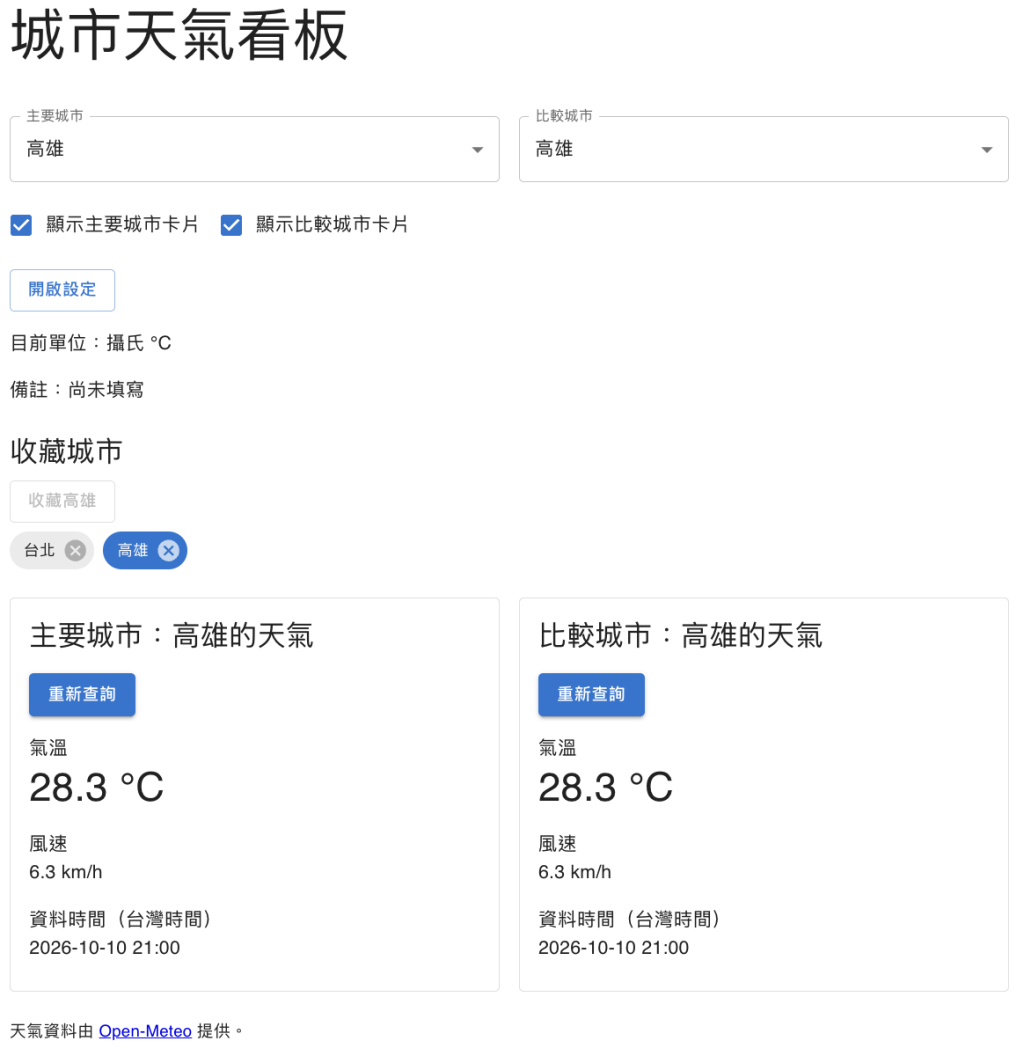
今天試著加入對話框和記憶保存,做一個可以收藏城市功能。
首先就是要盤點資料,除了既有的資料,還要針對收藏的功能增加資料。
| 既有資料 | 位置與類型 | 用途 |
|---|---|---|
CITIES |
weather.ts 的固定城市清單 |
提供選項、城市 ID 與名稱,收藏從這份清單選取 |
cityId |
外層 WeatherDashboard 的 state |
代表主要城市,點選收藏也更新它 |
comparisonCityId |
外層的 state | 代表比較城市 |
temperatureUnit |
外層的 state | 代表兩張卡片使用的正式單位,改由設定對話框套用 |
showWeather |
外層的 state | 控制主要卡片是否顯示 |
showComparison |
外層的 state | 控制比較卡片是否顯示 |
note |
外層的 state | 代表正式備註,改由設定對話框套用 |
weather |
每張內層卡片呼叫 useWeather 時各自持有的 state |
保存該張卡片的載入、成功或失敗資料 |
reloadVersion |
每次 useWeather 呼叫各自持有的 state |
觸發該張卡片的同城重查 |
收藏與對話框在「執行」階段加入,瀏覽器保存的狀態留到「修改」階段。
| 新增 state | 初始值 | 用途 | 加入階段 |
|---|---|---|---|
favoriteCityIds |
[] |
保存已收藏的城市 ID | 執行 |
settingsOpen |
false |
控制設定對話框開關 | 執行 |
draftUnit |
"celsius" |
保存正在編輯的單位,開啟時複製正式值 | 執行 |
draftNote |
"" |
保存正在編輯的備註,開啟時複製正式值 | 執行 |
storageReady |
false |
記錄初始化讀取是否完成 | 修改 |
restoreWarning |
null |
保存初始化還原失敗的提示 | 修改 |
saveError |
null |
保存寫入失敗的提示 | 修改 |
在程式中還需要資料作為結果與共用:
| 新增內容 | 類型 | 來源或用途 |
|---|---|---|
noteTooLong |
渲染時計算的布林值 | 從 draftNote.trim().length 與長度上限計算 |
storageMessage |
渲染時計算的提示文字 | 從 saveError ?? restoreWarning 取得 |
MAX_NOTE_LENGTH |
常數 | 定義備註長度上限 100 |
STORAGE_KEY |
常數 | 定義偏好資料的保存 key |
DEFAULT_PREFERENCES |
預設資料物件 | 集中收藏、單位與備註的預設值,供初始化使用 |
WeatherPreferences |
TypeScript 型別 | 描述要保存的資料結構 |
noteTooLong 與 storageMessage 會每次渲染從已有 state 計算,保存物件則由 favoriteCityIds、temperatureUnit 與 note 組合,這三份正式資料會作為畫面與保存的來源。
現在保留六個既有外層 state,加入收藏與對話框需要的四個 state,保存階段的三個 state 後面再加入。
在 React 匯入後新增以下 MUI 匯入:
import Chip from "@mui/material/Chip";
import Dialog from "@mui/material/Dialog";
import DialogActions from "@mui/material/DialogActions";
import DialogContent from "@mui/material/DialogContent";
import DialogContentText from "@mui/material/DialogContentText";
import DialogTitle from "@mui/material/DialogTitle";
在 WeatherPanel 前新增 const MAX_NOTE_LENGTH = 100;,在 WeatherDashboard 原本六個 state 之後新增:
const [favoriteCityIds, setFavoriteCityIds] = useState<CityId[]>([]);
const [settingsOpen, setSettingsOpen] = useState(false);
const [draftUnit, setDraftUnit] = useState<TemperatureUnit>("celsius");
const [draftNote, setDraftNote] = useState("");
const noteTooLong = draftNote.trim().length > MAX_NOTE_LENGTH;
在 WeatherDashboard 的 return 前加入:
function addFavorite() {
  setFavoriteCityIds((previous) => (
    previous.includes(cityId) ? previous : [...previous, cityId]
  ));
}

function removeFavorite(id: CityId) {
  setFavoriteCityIds((previous) => previous.filter((city) => city !== id));
}
taipei。getCity(id) 取得。filter()。資料和動作都準備好了,在查詢設定區與雙卡片 Box 之間新增收藏動作,
接著用 MUI 的 Chip 顯示收藏:
{/*示意片段*/}
<Stack component="section" aria-labelledby="favorites-heading" spacing={1}>
  <Typography id="favorites-heading" component="h2" variant="h5">收藏城市</Typography>
  <Button
    type="button"
    variant="outlined"
    onClick={addFavorite}
    disabled={favoriteCityIds.includes(cityId)}
    sx={{ alignSelf: "flex-start" }}
  >
    收藏{getCity(cityId).name}
  </Button>
  {favoriteCityIds.length === 0 ? <Typography>尚未收藏城市。</Typography> : (
    <Box sx={{ display: "flex", flexWrap: "wrap", gap: 1 }}>
      {favoriteCityIds.map((id) => (
        <Chip
          key={id}
          label={getCity(id).name}
          color={id === cityId ? "primary" : "default"}
          onClick={() => setCityId(id)}
          onDelete={() => removeFavorite(id)}
        />
      ))}
    </Box>
  )}
</Stack>
onClick 切換主要城市,onDelete 刪除收藏,MUI 提供操作入口,事件會決定更新哪份 state。
要注意收藏與刪除沒有改變查詢參數,所以不會新增天氣查詢。點選不同城市的 Chip 才會更新 cityId,讓主要卡片重新同步。如果選到同一個城市,參數沒變,需要使用卡片的「重新查詢」來重查。
原來的 temperatureUnit 與 note 代表已套用的設定,對話框另外使用 draftUnit、draftNote,settingsOpen 則控制開關。
在 return 前加入以下函式:
// 示意片段
function openSettings() {
  setDraftUnit(temperatureUnit);
  setDraftNote(note);
  setSettingsOpen(true);
}

function closeSettings() {
  setSettingsOpen(false);
}

function applySettings() {
  if (noteTooLong) return;
  setTemperatureUnit(draftUnit);
  setNote(draftNote.trim());
  setSettingsOpen(false);
}
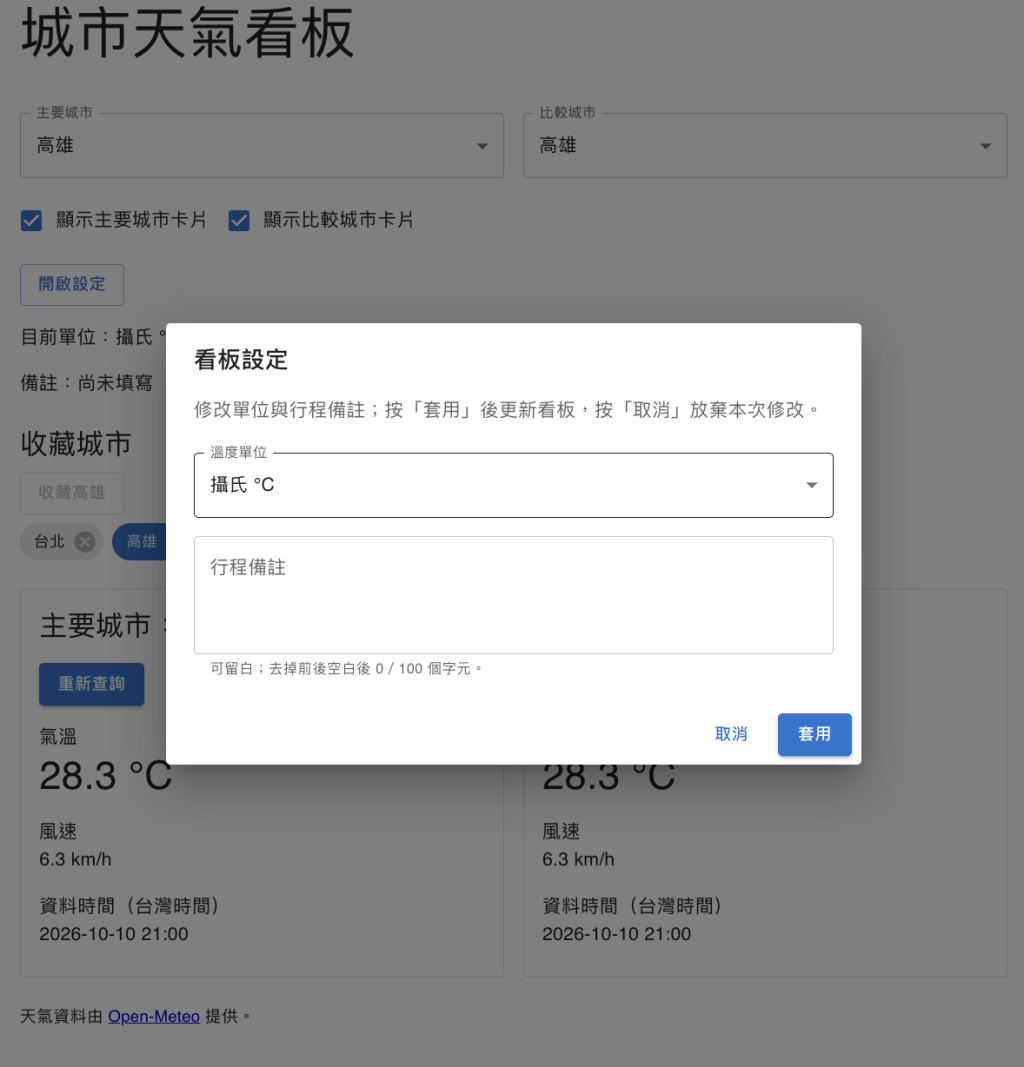
每次開啟都會複製正式值。輸入只更新草稿,取消只關閉,套用才更新正式設定。這樣我們可以先選華氏、輸入備註,覺得不合適就取消,下次開啟仍看到原來的正式值。
MUI 用 Dialog、DialogTitle、DialogContent 與 DialogActions 組合設定介面。
{/*示意片段*/}
<Dialog
  open={settingsOpen}
  onClose={closeSettings}
  aria-labelledby="settings-title"
  aria-describedby="settings-description"
  fullWidth
  maxWidth="sm"
>
  <DialogTitle id="settings-title">看板設定</DialogTitle>
  <DialogContent>
    <DialogContentText id="settings-description" sx={{ mb: 2 }}>
      修改單位與行程備註;按「套用」後更新看板,按「取消」放棄本次修改。
    </DialogContentText>
    <Stack spacing={2} sx={{ pt: 1 }}>
      <FormControl fullWidth>
        <InputLabel id="settings-unit-label">溫度單位</InputLabel>
        <Select<TemperatureUnit>
          labelId="settings-unit-label"
          id="settings-unit"
          label="溫度單位"
          value={draftUnit}
          onChange={(event) => setDraftUnit(event.target.value as TemperatureUnit)}
        >
          <MenuItem value="celsius">攝氏 °C</MenuItem>
          <MenuItem value="fahrenheit">華氏 °F</MenuItem>
        </Select>
      </FormControl>
      <TextField
        id="settings-note"
        label="行程備註"
        autoFocus
        multiline
        rows={3}
        fullWidth
        value={draftNote}
        onChange={(event) => setDraftNote(event.target.value)}
        error={noteTooLong}
        helperText={noteTooLong
          ? `備註最多 ${MAX_NOTE_LENGTH} 個字元,請縮短後再套用。`
          : `可留白;去掉前後空白後 ${draftNote.trim().length}/${MAX_NOTE_LENGTH} 個字元。`}
      />
    </Stack>
  </DialogContent>
  <DialogActions>
    <Button type="button" onClick={closeSettings}>取消</Button>
    <Button type="button" variant="contained" onClick={applySettings} disabled={noteTooLong}>套用</Button>
  </DialogActions>
</Dialog>
記得放上開啟設定按鈕來打開對話框:
<Button onClick={openSettings}>開啟設定</Button>
說明:
open 接 settingsOpen。onClose 接 closeSettings
aria-labelledby。Select 改讀取 draftUnit。TextField 改讀取 draftNote。error 與 helperText 顯示長度錯誤,過長時停用套用按鈕。localStorage 是瀏覽器提供的儲存空間,值以字串保存,正常情況下能跨重新載入保留。
要注意的是:同一個 origin 由協定、主機與連接埠決定,如果更換之後,可能會讀到另一份儲存空間,讀寫也可能因瀏覽器政策或容量限制失敗。
這次我們要保存三項正式資料:
接著從 localStorage 讀取資料後,先檢查格式,再還原到 state。
新增 weather-preferences.ts:
import { CITIES, type CityId, type TemperatureUnit } from "./weather";

export const STORAGE_KEY = "weather-dashboard:preferences:v1";
export const MAX_NOTE_LENGTH = 100;

// 定義的資料型別
export type WeatherPreferences = {
  favoriteCityIds: CityId[];
  temperatureUnit: TemperatureUnit;
  note: string;
};

// 預設的偏好
export const DEFAULT_PREFERENCES: WeatherPreferences = {
  favoriteCityIds: [],
  temperatureUnit: "celsius",
  note: "",
};

function isCityId(value: unknown): value is CityId {
  return typeof value === "string" && CITIES.some((city) => city.id === value);
}

export function parsePreferences(value: unknown): WeatherPreferences {
  if (typeof value !== "object" || value === null || Array.isArray(value)) {
    throw new Error("設定必須是物件。");
  }

  const data = value as Record<string, unknown>;
  if (
    !Array.isArray(data.favoriteCityIds) ||
    !data.favoriteCityIds.every(isCityId) ||
    (data.temperatureUnit !== "celsius" && data.temperatureUnit !== "fahrenheit") ||
    typeof data.note !== "string" ||
    data.note.trim().length > MAX_NOTE_LENGTH
  ) {
    throw new Error("設定內容不符合預期。");
  }

  return {
    favoriteCityIds: [...new Set(data.favoriteCityIds)],
    temperatureUnit: data.temperatureUnit,
    note: data.note.trim(),
  };
}
我們是透過 STORAGE_KEY 的 v1 用來識別這份資料格式,接著 JSON.parse() 解析 JSON,在這個檢查程式中確認城市屬於固定清單、單位是允許值、備註是字串且長度合格。
接著回到 dashboard,把 React 匯入改成 import { useEffect, useState } from "react";,刪除原先自行宣告的 MAX_NOTE_LENGTH,新增以下 import:
import {
  DEFAULT_PREFERENCES,
  MAX_NOTE_LENGTH,
  STORAGE_KEY,
  parsePreferences,
  type WeatherPreferences,
} from "./weather-preferences";
在 WeatherDashboard 所有既有 state 之後新增:
const [storageReady, setStorageReady] = useState(false);
const [restoreWarning, setRestoreWarning] = useState<string | null>(null);
const [saveError, setSaveError] = useState<string | null>(null);
接著在所有 state 之後、事件函式之前加入這兩個 Effect:
// 這個用來取得 localStorage
useEffect(() => {
  try {
    const raw = window.localStorage.getItem(STORAGE_KEY); // 取得 localStorage
    const saved = raw === null
      ? DEFAULT_PREFERENCES
      : parsePreferences(JSON.parse(raw) as unknown);
    setFavoriteCityIds(saved.favoriteCityIds);
    setTemperatureUnit(saved.temperatureUnit);
    setNote(saved.note);
  } catch {
    setRestoreWarning("無法還原已保存的設定,先使用預設值。");
  }
  setStorageReady(true);
}, []);

// 將正式設定保存到 localStorage
useEffect(() => {
  if (!storageReady) return;
  try {
    const preferences: WeatherPreferences = { favoriteCityIds, temperatureUnit, note };
    window.localStorage.setItem(STORAGE_KEY, JSON.stringify(preferences));
    setSaveError(null);
  } catch {
    setSaveError("設定已套用到目前畫面,但無法保存;重新載入可能遺失。");
  }
}, [favoriteCityIds, temperatureUnit, note, storageReady]);
storageReady。因為第一次渲染的 storageReady 是 false,所以會略過寫入,還原完成後才寫入讀到的資料。
另外就是第一個 Effect 呼叫 setter 後,第二個還是會讀取這次渲染的 state 快照,如果沒有 storageReady 條件,就可能先把預設值寫到儲存空間。
若 JSON 損壞或欄位不合法,這裡還是保留預設值、顯示還原警告,隨後嘗試寫回合法的預設資料。如果這時讀寫遭瀏覽器阻擋,畫面仍可操作,保存失敗會顯示提示,修改下一次正式資料時會再次嘗試寫入。
兩個草稿值與 settingsOpen 都不在保存依賴中,因此輸入、取消與開關對話框不會保存草稿,這裡是透過 Effect 持續同步正式設定到外部儲存空間。
因為專案開啟 SSR,伺服器環境沒有 window.localStorage,而因為伺服器 HTML 與瀏覽器初次渲染要一致,因此會從相同預設 state 開始,等瀏覽器的 Effect 再讀設定。
React:useEffect,Displaying different content on the server and the client
在事件函式之後、原本主要 return 之前加入:
if (!storageReady) {
  return (
    <>
      <CssBaseline />
      <Container component="main" maxWidth="md" sx={{ py: 4 }}>
        <Typography role="status">正在讀取已保存的設定...</Typography>
      </Container>
    </>
  );
}
這段等待主要是讓卡片在還原單位後才掛載,避免先用預設單位查詢,導致因為先前還原而切換單位。所有 Hook 都必須放在這個條件 return 之前,不能等 storageReady 為 true 才呼叫 Hook。
在事件函式之前加入 const storageMessage = saveError ?? restoreWarning;,再到頁面 header 後新增:
{storageMessage ? <Alert severity="warning">{storageMessage}</Alert> : null}
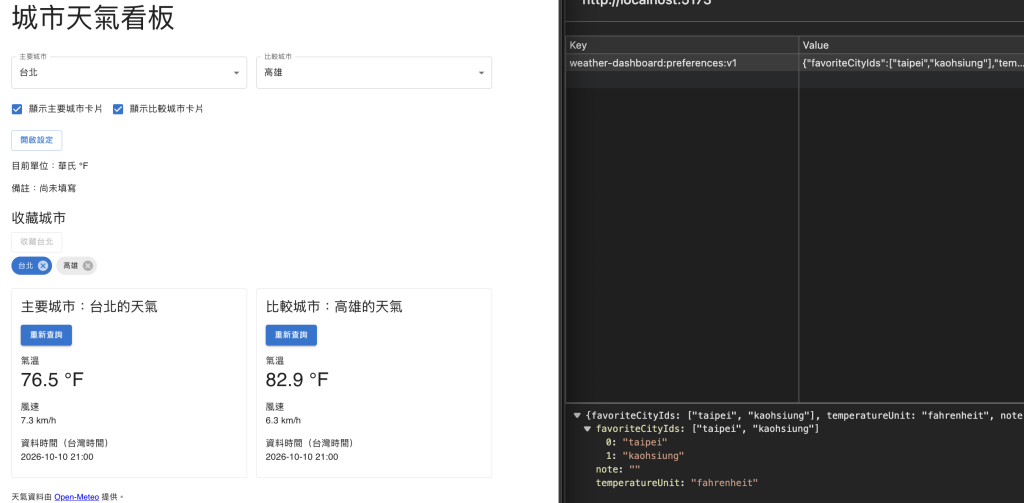
這樣我們就順利將資料存入瀏覽器,也可以提取出來後套用到畫面上。也練習 MUI 基本元件和對話框的操作,明天就要進入三天的小專案練習了(希望能順利)。



 iThome鐵人賽
 看影片追技術