

每天下班前,填寫每日工作日誌是一項令人苦惱的事情,盯著工作日誌回想:「我今天早上 10 點到底改了哪個功能?下午又修了什麼 bug?」,然後去翻瀏覽器歷史紀錄或 Git 提交列表,東拼西湊耗掉半小時。身為開發者 Git Commits 就是最真實的工作足跡。
今天將實作兩種觸發方式:從終端機手動產生,以及在排程時間自動產生。流程會整理 Git 提交與工作備註,輸出當天的工作摘要。
本文同步發布於 GitHub: 2026-18th-it-ironman
很多自動化流程喜歡將日報觸發寫死在 18:00(下午 6 點),但真實工程師的工作節奏往往充滿變數:
因此,好的設計必須是:「隨叫隨到的終端快捷指令(On-Demand)+ 當日自適應覆蓋更新(Idempotent Update)+ 傍晚定時保底」!

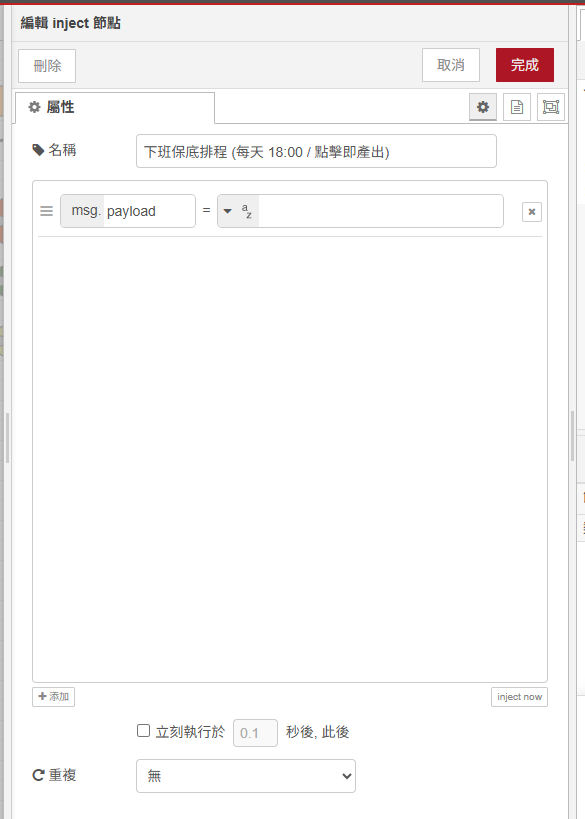
http in 節點)定時保底 / 手動點擊(inject 節點):
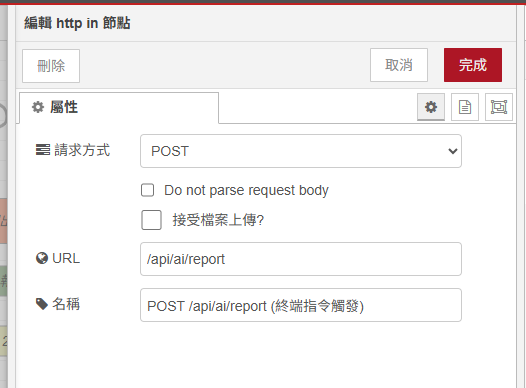
Local Webhook API 接收(http in 節點):
POST
/api/ai/report
拉出一個 exec 節點,執行 PowerShell 指令抓取從今天凌晨 00:00 到目前為止的所有提交(確保加班到多晚都能抓到最新進度):
powershell -NoProfile -Command "git log --since='midnight' --pretty=format:'* [%h] %s (%an)' --no-merges"
* [a1b2c3d] feat: 完成 Downloads 檔案分類與自動歸檔模組 (Developer)
* [e4f5g6h] fix: 修正 Function 節點模組引入規範 (Developer)
* [7817dc0] docs: 重構 Day 01~04 文章語氣與去除 Emoji (Developer)
* [9e5663c] feat: 完善 Day 06 剪貼簿主動讀取與寫回全流程 (Developer)
在 Function 節點中,我們讓 AI 扮演專業的技術主管,將零碎的 Commit 訊息提煉為 4 大標準結構:
// Function 節點:建立工作日報 Prompt (支援 0 commit 智慧保底與自訂工作備註)
const rawCommits = (msg.payload || '').trim();
const customNotes = (msg.req && msg.req.body && msg.req.body.notes ? msg.req.body.notes : (msg.notes || '')).trim();

let workSummary = '';

if (rawCommits && customNotes) {
    workSummary = `今日 Git 提交紀錄:\n${rawCommits}\n\n其他工作協作事項 (非代碼提交):\n${customNotes}`;
} else if (rawCommits) {
    workSummary = `今日 Git 提交紀錄:\n${rawCommits}`;
} else if (customNotes) {
    workSummary = `今日無代碼提交,主要工作事項摘要:\n${customNotes}`;
} else {
    workSummary = `今日無 Git 提交紀錄 (主要進行跨部門需求對齊、系統架構調研、技術選型評估與 Code Review 協作)。`;
}

const today = new Date().toISOString().slice(0, 10);

const prompt = `你是一位專業的技術主管。請根據以下開發者「今天 (${today})」的工作成果與協作紀錄,產出一份排版清晰、語氣專業、結構嚴謹的每日工作日報 (Markdown 格式)。

日報必須包含以下 4 大核心區塊:
1. 🎯 今日核心成果摘要 (1~2 句話精準概括整體進度)
2. 🚀 新增功能與模組推進 (條列具體開發或調研成果)
3. 🛠️ 缺陷修復與技術重構 (條列優化項目或排查進度)
4. 📌 明日推進規劃事項 (根據今日進度推演明日待辦)

今日工作成果數據:
${workSummary}`;

msg.prompt = prompt;
msg.payload = `agy -p ${JSON.stringify(prompt)} --dangerously-skip-permissions --output-format json`;
return msg;
agy cli(Exec 節點)拉出一個 exec 節點:
msg.payload 傳入)。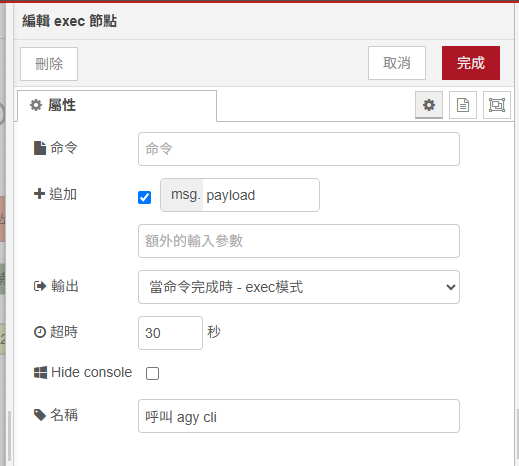
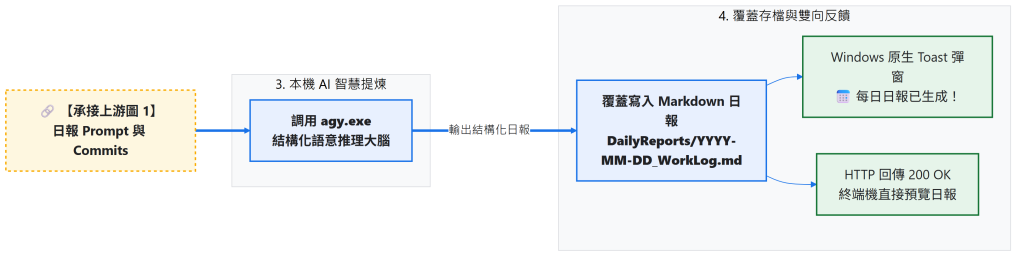
DailyReports/ 並彈出 Toast(Function ➔ Exec 節點)在 Function 節點中,利用 Node.js 內建的 os、fs、path 將日報覆蓋保存到使用者家目錄的 DailyReports/ 下(每次執行都會把當天最完整的日報更新進去):
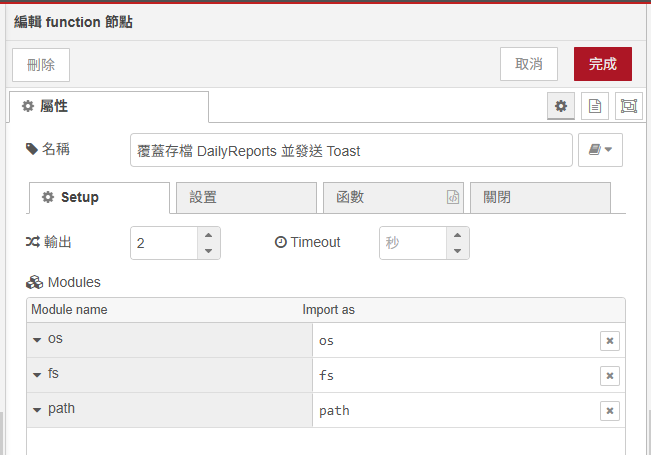
// Function 節點:存檔並發送通知 (Setup 頁籤注入 os, fs, path)
let parsed;
try {
    parsed = typeof msg.payload === 'string' ? JSON.parse(msg.payload) : msg.payload;
} catch (e) {
    parsed = { response: msg.payload };
}

let reportContent = (parsed.response || parsed.structured_output || msg.payload || '').trim();
reportContent = reportContent.replace(/^```markdown\s*/i, '').replace(/^```\s*/i, '').replace(/\s*```$/, '').trim();

const homedir = os.homedir();
const dir = path.join(homedir, 'DailyReports');
fs.mkdirSync(dir, { recursive: true });

const todayStr = new Date().toISOString().slice(0, 10);
const filePath = path.join(dir, `${todayStr}_WorkLog.md`);

// 覆蓋寫入當日日報 (即使加班到深夜再次觸發,也能自動更新全天完整進度)
fs.writeFileSync(filePath, reportContent, 'utf-8');

msg.savedPath = filePath;
msg.reportContent = reportContent;

// 建立 Windows 原生 Toast 彈窗提醒
msg.payload = `powershell -NoProfile -Command "[Windows.UI.Notifications.ToastNotificationManager, Windows.UI.Notifications, ContentType = WindowsRuntime] > $null; $template = [Windows.UI.Notifications.ToastNotificationManager]::GetTemplateContent([Windows.UI.Notifications.ToastTemplateType]::ToastText02); $textNodes = $template.GetElementsByTagName('text'); $textNodes.Item(0).AppendChild($template.CreateTextNode('📅 每日工作日報已生成!')) > $null; $textNodes.Item(1).AppendChild($template.CreateTextNode('已儲存至 DailyReports/${todayStr}_WorkLog.md')) > $null; [Windows.UI.Notifications.ToastNotificationManager]::CreateToastNotifier('Node-RED AI 管家').Show([Windows.UI.Notifications.ToastNotification]::new($template));"`;

return [msg, { payload: { status: 'SUCCESS', savedPath: filePath, content: reportContent }, req: msg.req, res: msg.res }];
$PROFILE 配置 daily-report 一鍵生成指令打開 PowerShell 設定檔(notepad $PROFILE),貼入以下函數:
# 在 PowerShell 中一鍵產出今日工作日報 (支援自訂工作備註與 0 commit 保底)
function daily-report {
    param([string]$Notes = "")
    if ($Notes) {
        Write-Host "`n⏳ 正在彙整今日進度與工作備註: '$Notes'..." -ForegroundColor Yellow
    } else {
        Write-Host "`n⏳ 正在彙整今日所有 Git 提交並由 AI 提煉日報,請稍候..." -ForegroundColor Yellow
    }
    try {
        $body = @{ notes = $Notes } | ConvertTo-Json
        $res = Invoke-RestMethod -Uri "http://127.0.0.1:1880/api/ai/report" -Method Post -Body $body -ContentType "application/json; charset=utf-8"
        Write-Host "🎉 每日工作日報已成功生成!" -ForegroundColor Green
        Write-Host "📁 存檔路徑: $($res.savedPath)" -ForegroundColor Cyan
        Write-Host "`n--- 日報預覽 ---" -ForegroundColor DarkGray
        Write-Host $res.content
        Write-Host "----------------`n" -ForegroundColor DarkGray
    } catch {
        Write-Host "❌ 無法連線至 Node-RED 日報端點,請確認 Node-RED 是否已啟動!" -ForegroundColor Red
    }
}
存檔後在終端機輸入 . $PROFILE 立即生效!
不論你何時在終端機輸入 daily-report,AI 都會輸出如下的高水準專業日報:

# 📅 開發工作日報 (2026-08-23)

### 🎯 今日核心成果摘要
本日完成 Node-RED 與本機 Agent 的整合,並串接下載區檔案歸檔、終端錯誤分析與剪貼簿表格化三個流程。這些流程仍應依實際案例持續測試。

### 🚀 新增功能與模組推進
- **Downloads 智慧分類模組**:支援自動語意分析與 Downloads 內部目錄歸檔。
- **PowerShell 救援 API**:支援自動捕獲 `$Error[0]` 最新異常並給出修復指令。
- **剪貼簿表格化模組**:實現非結構化文字 ➔ Markdown 表格 ➔ 自動寫回剪貼簿與 Toast 閉環。

### 🛠️ 缺陷修復與技術重構
- **修復 Exec 節點 addpay 參數**:解決命令為空時的 `ERR_INVALID_ARG_VALUE` 異常。
- **圖片路徑 ASCII 標準化**:全系列目錄重命名為 `image/day01~06`,徹底修復 GitHub 預覽破圖。

### 📌 明日推進規劃事項
- 推進 Day 08「電腦風扇狂轉 ➔ AI 秒級即時根因診斷」守護管線。
- 完善性能異常診斷與自動化自癒流程。
Windows 桌面右下角同步彈出: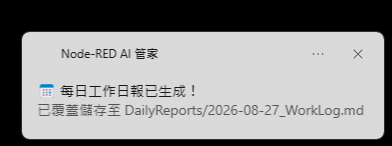
本案例 flow
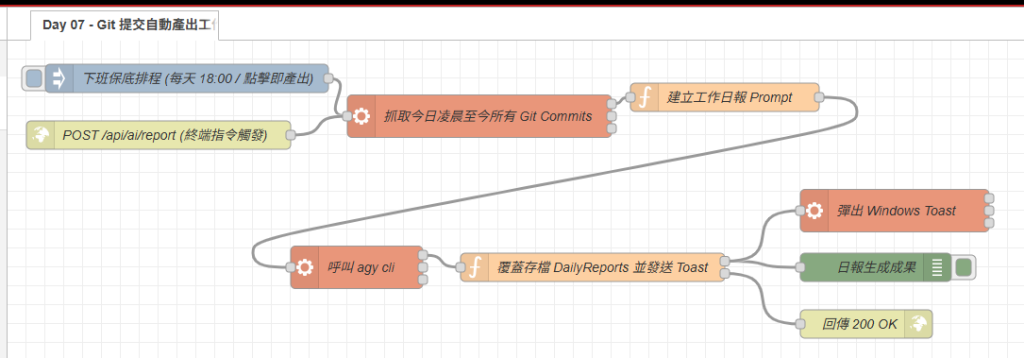
今天將固定時間排程改成手動與排程並存,並保留增量更新日報的處理方式。


 iThome鐵人賽
 看影片追技術